

Prerequisites
- Access to the Kerio Administration interface
- Your MailChannels SMTP username and password
- SMTP installed and configured on your Kerio Connect system — see the GFI/Kerio Connect documentation if not already set up
Configure the relay
1
Enable authenticated relay
In the Kerio Administration interface, select Configuration > SMTP to open the main configuration screen.Select the Relay Control tab. If not already set, check Allow relay only for: and then check Users authenticated through SMTP for outgoing mail.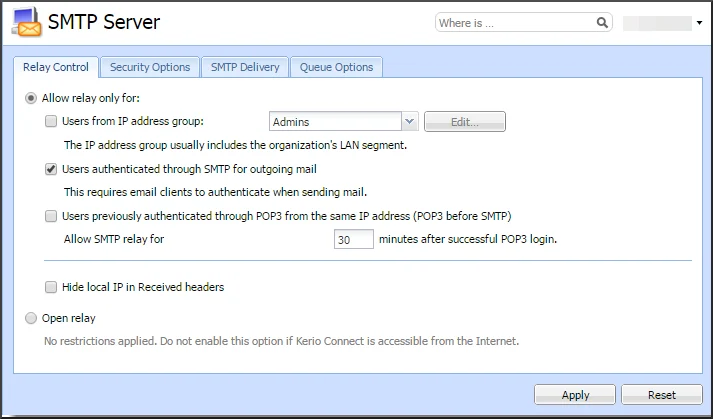
2
Configure SMTP delivery options
Select the SMTP Delivery tab.Under SMTP client options, uncheck Use SSL/TLS if supported by remote SMTP server if it is checked. MailChannels uses opportunistic TLS outbound after content scanning, so this setting is not needed on the client side.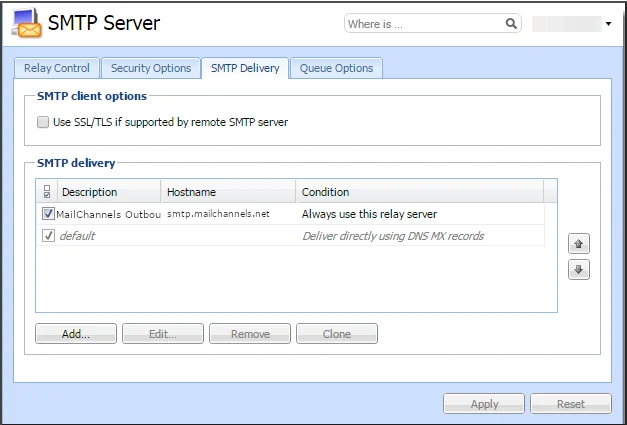
Do not remove the default profile from the SMTP delivery list. Move it to the last position after adding your MailChannels relay, so it acts as a last-resort destination.
3
Add the MailChannels SMTP relay
Click Add to create a new SMTP relay item and enter the following values: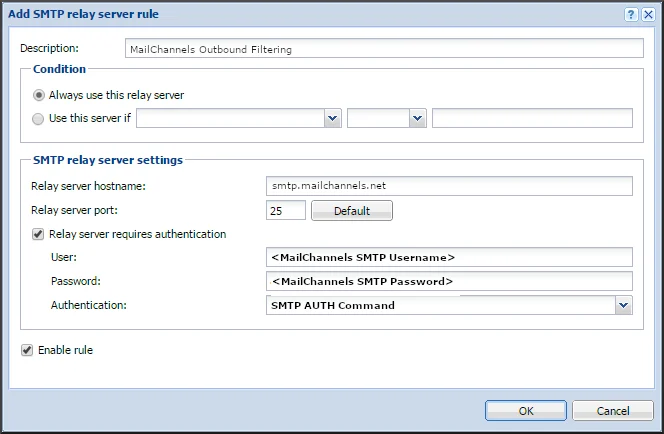
Troubleshooting
Alternate SMTP ports — If port 25 is blocked, configure the relay to use port2525, 465, or 587 instead.
Excluding a domain or sender from the relay — Add a new SMTP relay item with the exclusion condition and place it above any rule that uses Always use this relay server. Kerio Connect evaluates rules in order and stops at the first match.