

How senders get blocked
MailChannels uses two blocking mechanisms:- Automated blocks are temporary. They activate when the system observes an unusual rate of spam, complaints, or invalid recipients from a sender, and lift automatically once the problematic traffic subsides.
- Manual blocks are permanent and require explicit action to remove. They are applied when a sender accumulates repeated temporary blocks or when severe abuse is confirmed. The
[ESA]bounce code indicates a permanent block of this type.
For end-users
Step 1 — Use MailChannels Insights
MailChannels Insights includes a customized URL when certain emails are rejected. Open the URL in a browser to load a page with a self-service Not Spam button for reporting false positives.1
Open the Insights bounce link
Click the Insights link in the NDR bounce message to open the block summary page in your browser.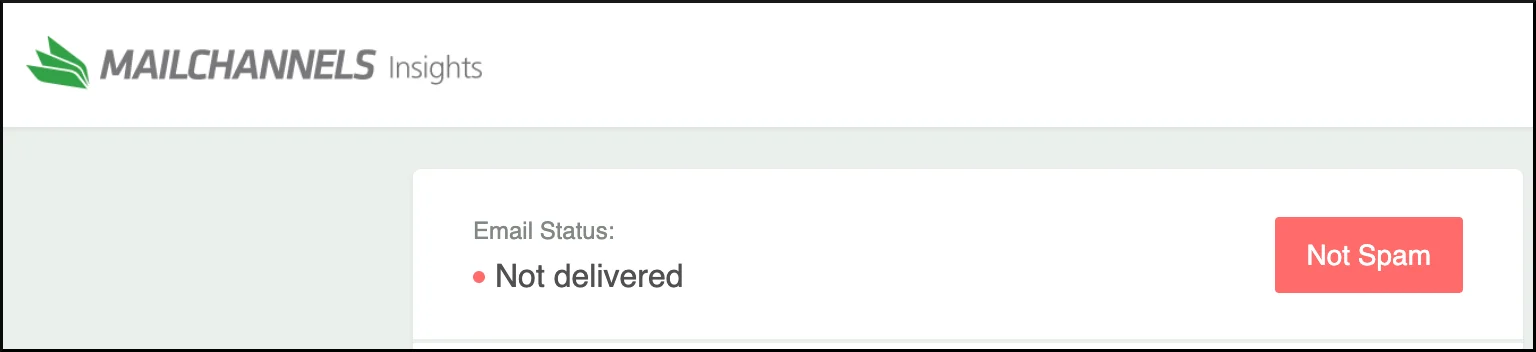
2
Submit the false positive report
Click Not Spam, then click Confirm to submit the false positive report. This clears the spam classification and allows the message to be resent.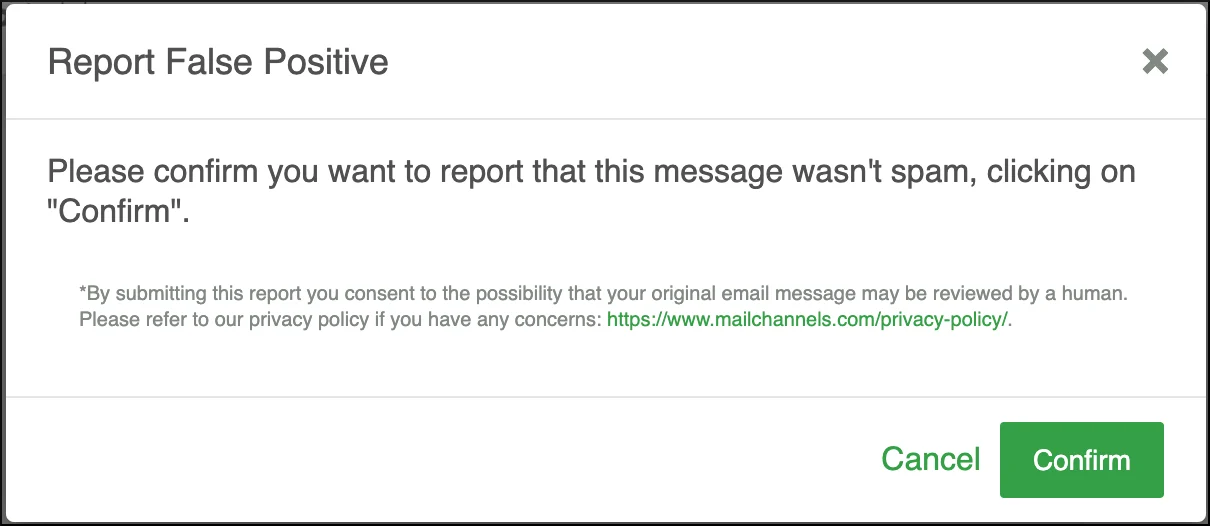
Step 2 — Contact your service provider
If the Insights page does not include a Not Spam button, contact your service provider. They can remediate false positives directly from the Host Console and can enable Insights NDR links on your account if they are not already active.For service providers
Step 1 — Use the Host Console
The Log Search area of the Host Console is the primary tool for locating and remediating blocked senders.1
Locate the blocked message
Log in to the Host Console and navigate to Outbound > Log Search. Use the search bar or advanced filters to find messages from the affected sender.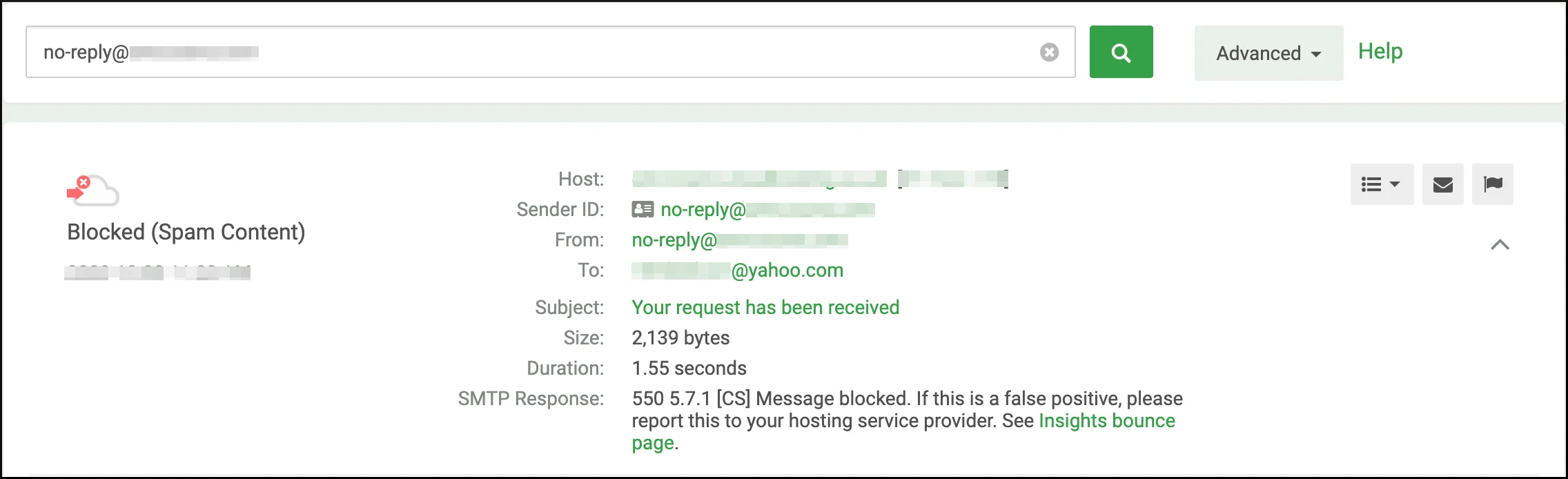
2
Remediate from the log entry
From the log entry, choose the appropriate action based on the block type:
- See Insights bounce page — click this link under SMTP Response to open the Insights page and click Not Spam on behalf of the sender.
-
Send Insights link — click the
 icon to send a fresh Insights link directly to the sender for self-remediation.
-
Report an Issue — click the
 flag icon to open the Report an Issue dialog. Enter a title and description, then click Submit to create a support ticket. The MailChannels Support team will contact you to resolve the issue.
-
Not Spam (
[CS]content spam blocks only) — a Not Spam button appears directly on the message details line, allowing immediate remediation without opening a support ticket.
-
Delist Sender (
[ESA]blocks) — click the flag icon to open Report an Issue. When an active[ESA]block is present, a Delist Sender button appears in the dialog. Click it only after the account has been secured and all spam activity has stopped — delisting before securing the account will result in an immediate re-block.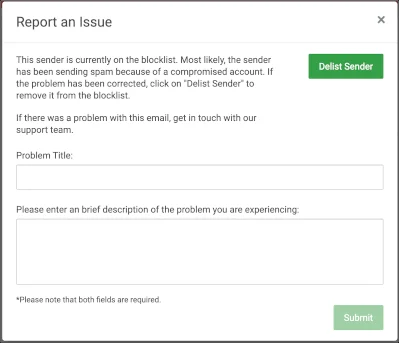
Step 2 — Contact MailChannels Support
Some infractions require additional analysis beyond what the Host Console can resolve. Contact support@mailchannels.com if:- The Insights bounce page does not include a Not Spam button.
- The sender has been delisted but is being blocked again and you cannot identify the cause.
- You need a detailed breakdown of the abuse events that triggered the block.
Best practices before unblocking
Unblocking a sender without addressing the root cause leads to repeat blocks. Before restoring access, verify the following:- Password changed — the sender has set a new, strong password.
- OS updates applied — the sender’s operating system has the latest security patches installed.
- Malware scan completed — a full antivirus and malware scan has been run and any threats removed.
- Mailing list cleaned — if the block was triggered by a high invalid-recipient rate (
[IRR]), invalid addresses have been removed and remaining contacts verified. - Sending practices reviewed — if the block was triggered by feedback loop complaints (
[FBL]), the sender has reviewed their opt-in practices, unsubscribe links, and message content.