

When saving, choose unformatted or raw if the option is available. The EML file must be a plain-text representation of the message including all headers.
Gmail
1
Open the message and show original
In Gmail, open the message. Click the ⋮ menu (top right of the message) and select Show original.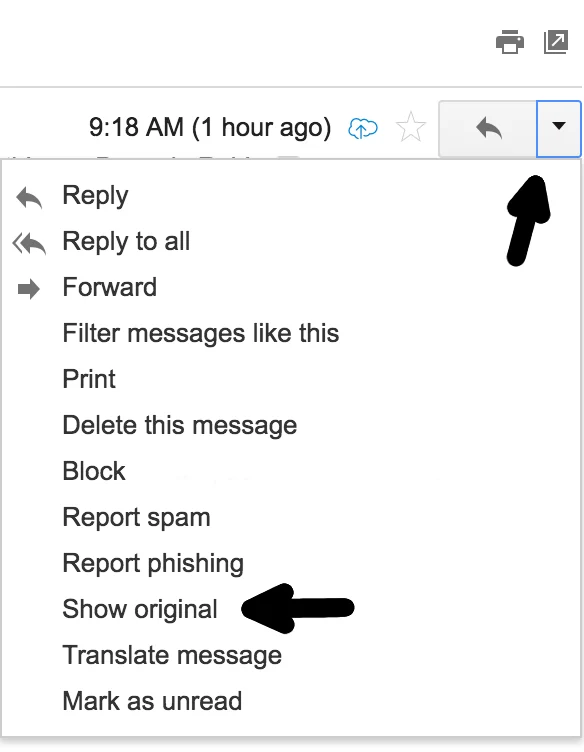
2
Download the original
On the Original Message page, click Download Original in the bottom-left corner. Save the file with a descriptive name and the
.eml extension (e.g. sender@example.com-2024-06-01.eml). If the dialog appends .txt, change the file type to All Files.3
Submit the file
Attach the
.eml file to your support ticket or email it to support@mailchannels.com with your ticket number.Outlook
1
Open Message Properties
Open the message in Outlook. In the Message window, locate the Tags group and click the small anchor icon at the bottom-left to open Message Properties.
2
Copy the internet headers
In the Internet Headers section at the bottom of the dialog, select all text (Ctrl+A) and copy it (Ctrl+C). Close the dialog.
3
Save as EML
Open a text editor, paste the headers, and save the file with the
.eml extension. If the dialog appends .txt, change the file type to All Files.4
Submit the file
Attach the
.eml file to your support ticket or email it to support@mailchannels.com with your ticket number.Mac Mail
1
Select the message
In Mac Mail, click the message to highlight it.
2
Save as raw
Go to File > Save As. Set the Format to Raw and click Save. The file is saved to your desktop.
3
Submit the file
Attach the
.eml file to your support ticket or email it to support@mailchannels.com with your ticket number.