

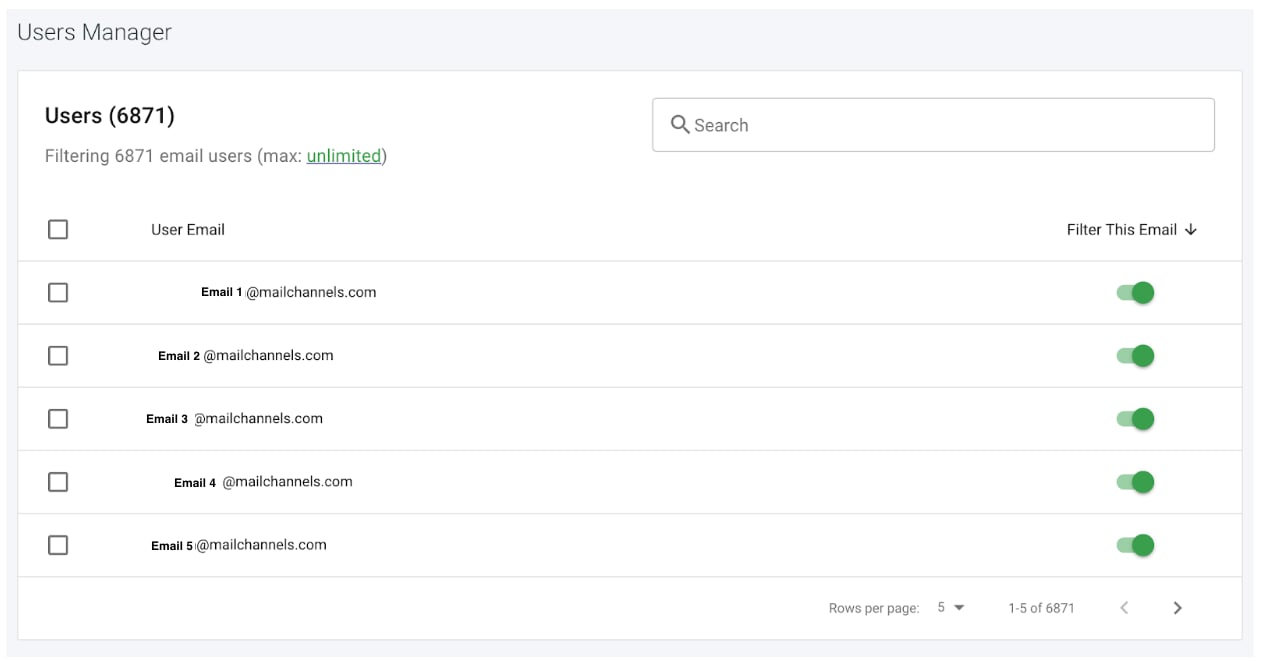
How the user list is populated
The user list populates automatically as email is processed by MailChannels ? there is no need for users to create accounts or for domain admins to add them manually. When MailChannels receives a message for a new address at your domain, that address is added to the list.Do you need to create accounts for each user?
No. Hosting providers and domain admins do not need to create Domain Console accounts for each recipient in advance. Once a domain is associated with MailChannels, all recipient addresses have their email automatically processed. Users are identified by their email delivery activity ? no manual setup is required.Protected recipients limit
If your domain’s plan includes a limit on the number of protected recipients, filtering is enabled on a first-come, first-served basis up to that limit. The first addresses to receive email through MailChannels are protected; addresses that arrive after the limit is reached are not filtered until capacity becomes available.Enable or disable filtering for a user
Domain admins can toggle email filtering on or off for individual users directly from the Users Manager. This lets you control which users in your domain have their email filtered, without affecting other users. To enable or disable filtering for a user:- Sign in to the Domain Console.
- Click Users Manager in the left navigation.
- Find the user in the list and use the toggle next to their name to enable or disable filtering.