

- Aliases do not count against your filtered domain quota and do not incur extra charges.
- A primary domain can have any number of aliases.
- You cannot create logins using an alias domain. Authentication in the Domain Console requires the primary domain.
- A quarantine digest includes messages addressed to both the primary recipient and any alias recipients with the same username (for example,
b@alias.example.comis treated as an alias recipient forb@example.com).
Add a domain alias
1
Locate the primary domain
In the Domains list, find the primary domain you want to alias. The primary domain must already be added to your console before you can assign an alias.
2
Open Domain Alias Settings
Click the Settings (gear) icon for the primary domain, then select Domain Alias Settings from the menu. The dialog shows any existing aliases for this domain.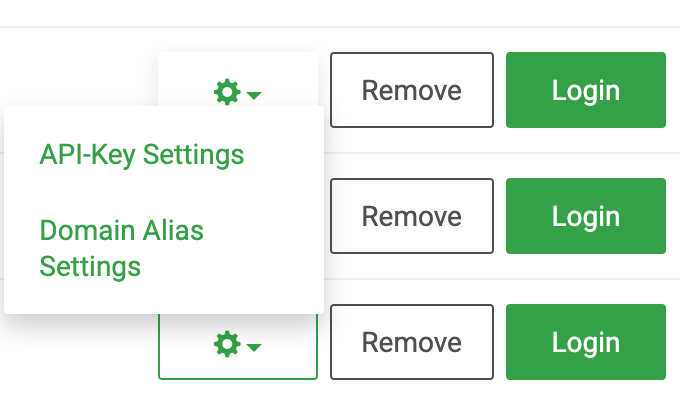
3
Add the alias
Enter the full alias domain name in the text box and click Add. The alias appears both in the main Domains list and inside the Domain Alias Settings dialog for the primary domain.
Any attempt to manage an alias domain as if it were a primary domain ? for example, adding blocklist entries directly to it ? will result in an error. Always manage settings on the primary domain.