

Add a single domain
1
Sign in to Host Console
Go to console.mailchannels.net and sign in with your host credentials.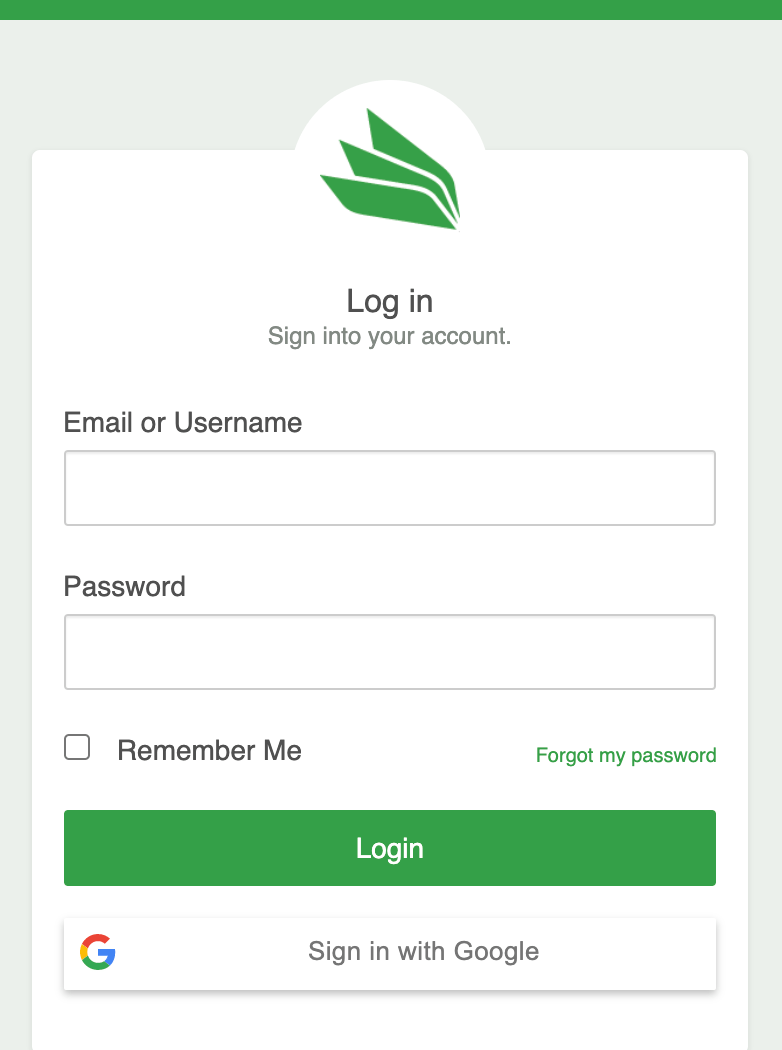
2
Open the Domains list
From the Dashboard, click Inbound, then click Domains.
3
Add the domain
Click Add New Domains, enter the domain name in the text field, and click Add.
4
Confirm the result
A confirmation message displays the number of domains successfully added, and the new domain appears in the list below
Add domains in bulk using a CSV file
You can add up to 1,000 domains at once by uploading a CSV file. Each row in the file represents one domain and its downstream mail server address or addresses.1
Prepare the CSV file
Create a plain text file with one domain per line. Do not include column headers. Each row must contain the domain name followed by its downstream address in
target:port or target:port:weight format. The downstream address tells MailChannels where to deliver filtered mail after scanning.For domains with multiple downstream targets, enclose all addresses in double quotes and separate them with commas:The
weight value is optional. When you specify multiple downstream addresses, MailChannels uses the weight to determine delivery priority. A lower weight means higher priority.2
Upload the file in Host Console
From the Dashboard, click Inbound, then click Domains. Click Add New Domains, choose the file upload option, select your CSV file, and click Add.
3
Review the results
After the upload completes, a summary message confirms how many domains were added successfully. Any rows that failed to import are reported so you can correct and re-upload them.
Add a domain alias
Domain aliasing lets you associate additional domain names with an existing primary domain. Aliases share the same downstream delivery path, spam policy, and quarantine settings as the primary domain and do not count against your filtered domain quota. See Domain aliases for full details and setup instructions.Search for a domain
- From the Dashboard, click Inbound, then click Domains.
- Type your search terms into the Search by domain field.
- Press Enter or click the magnifying glass button.
Manage domain settings
To configure settings for a specific domain, click Login next to the domain in the Domains list. This opens the Domain Console for that domain, where you can manage:- Users and user policies
- Domain administrators
- MX records and downstream mail server addresses
- Safelists and blocklists