

You can create plans two ways: with the guided plan builder in the addon, or by attaching the module to a product you configure yourself.
Prerequisites
- A connected parent account.
- At least one WHMCS product group. If none exists, the plan builder shows a link to create one instead of the form.
Use the guided plan builder
The plan builder creates a complete, ready-to-sell product in one step.1
Open the plan builder
Go to Addons > MailChannels Email API and find 2. Guided plan builder.
2
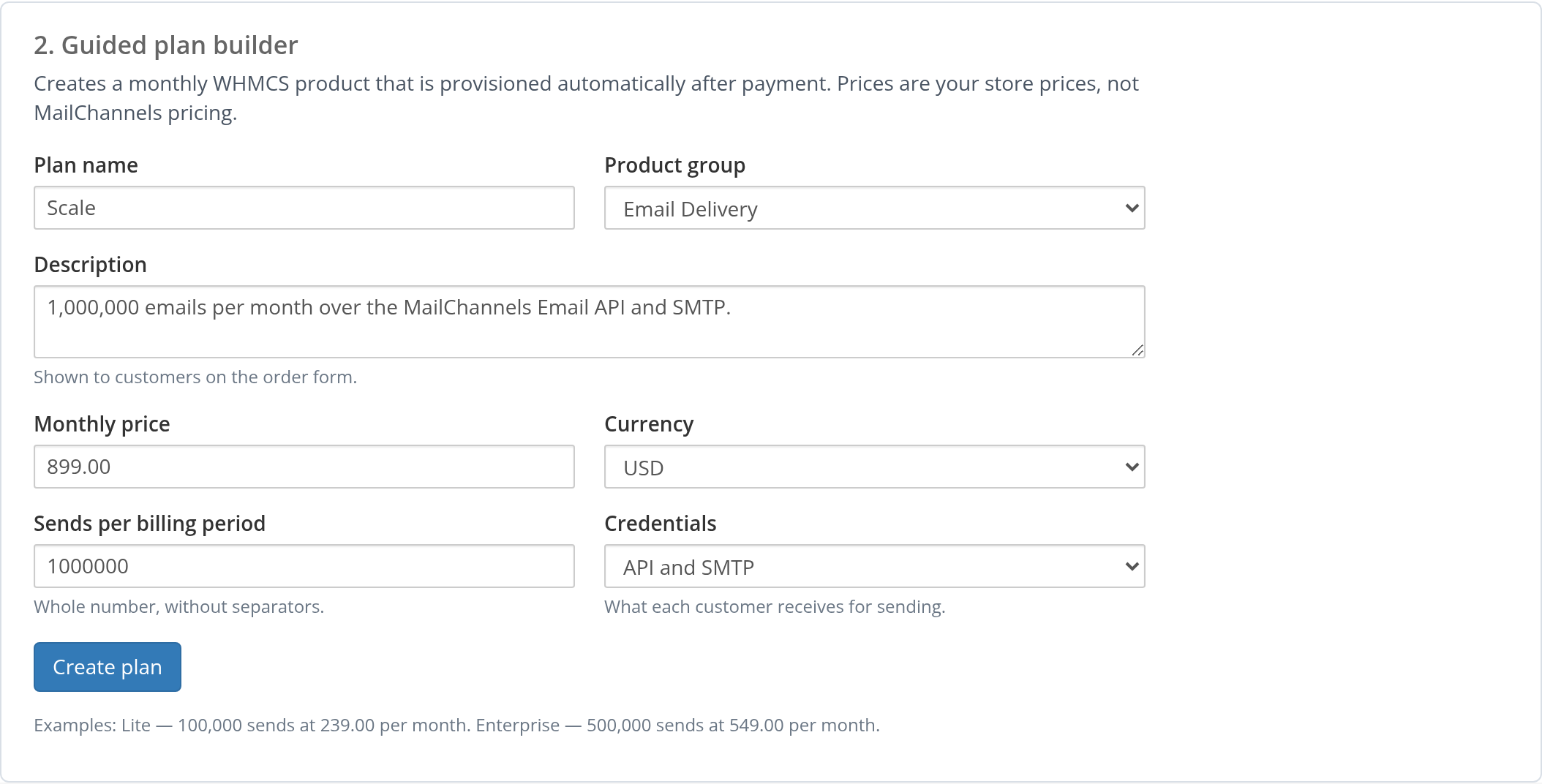
Fill in the plan
3
Create the plan
Click Create plan. The addon reports the new WHMCS product ID. If a value is rejected, the form keeps what you entered so you can correct it.
- Product type Other, with domain options hidden.
- Recurring monthly billing in the selected currency. Other billing cycles are disabled.
- Module set to MailChannels Email API with your send limit and credential mode.
- Automatic setup as soon as the first payment is received.
- The WHMCS welcome email disabled, because credentials are never sent by email.
Prices are your WHMCS store prices, not official MailChannels pricing. The plugin never reads or sets MailChannels billing.
Attach the module to an existing product
You can also use the module with a product you configure by hand.1
Edit the product
Go to System Settings > Products/Services and edit the product, or create a new product of type Other.
2
Set the module
On the Module Settings tab, choose MailChannels Email API as the module name. No server is required.
3
Configure the plan
Enter Sends per billing period as a positive integer and choose a Credential mode. Select Automatically setup the product as soon as the first payment is received.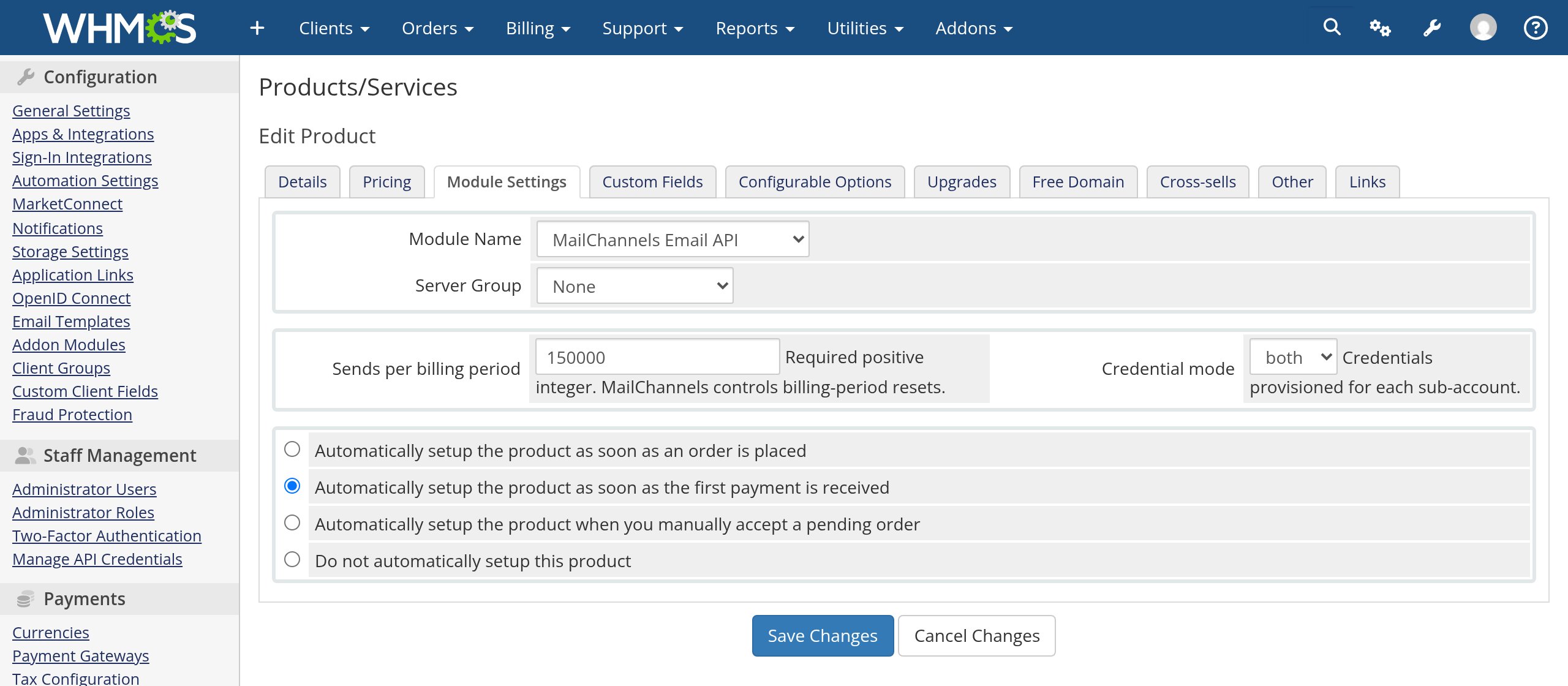
4
Save
Save the product. New orders for it now provision sub-accounts.
How limits relate to your parent account
Sub-account limits do not reserve capacity on your parent account. The parent account’s own limit is the hard ceiling. When your parent account reaches its limit, MailChannels blocks sending from every sub-account until the next billing period, regardless of how much of their own limit each customer has left. You may sell more total capacity than your parent limit if your customers’ actual usage stays below it. The addon’s Shared parent ceiling card warns you when allocations exceed the parent limit. See Capacity and reconciliation and Sub-account sending limits.Change an existing plan
Editing a product’s module settings in WHMCS does not change existing services. Only new orders pick up the new values. To roll a change out to existing customers, use the addon.1
Edit the product
Change Sends per billing period or Credential mode on the product’s Module Settings tab and save.
2
Preview the change
Go to Addons > MailChannels Email API and find 3. Preview and apply product changes. The table lists every MailChannels product with its configured limit, credentials, and the number of active or suspended services.The Status column shows whether existing services match the product. Up to date means nothing needs applying. A count such as 2 to update means that many services still have the old limit or credential mode.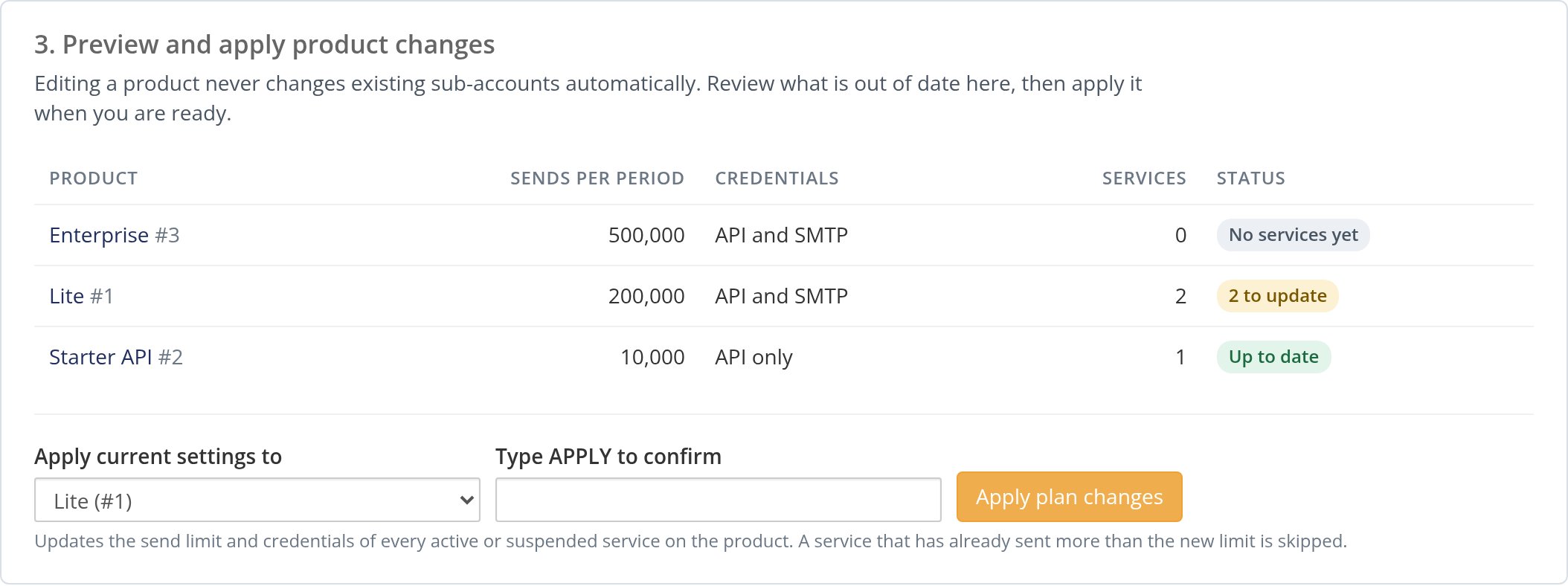
3
Apply the change
Select the product under Apply current settings to, type
APPLY in the confirmation field, and click Apply plan changes. The first product with services to update is selected for you.- Retrieves the sub-account’s current-period usage.
- Skips the service if the new limit is below current usage. The service keeps its old limit and is counted as requiring review.
- Applies the new send limit.
- Creates any credential type the new mode requires but the service lacks.
- Revokes module-managed credentials of a type the new mode no longer includes.
Change one customer’s plan
To move a single customer to a different plan, use the standard WHMCS upgrade or downgrade order, or edit the service and change its product under Products/Services, then run the Change Package module command. The same rules apply: a downgrade below current usage is rejected with the messageThe new send limit is below current-period usage; the package change was not applied.