> ## Documentation Index
> Fetch the complete documentation index at: https://docs.mailchannels.com/llms.txt
> Use this file to discover all available pages before exploring further.
# Unblock senders in MailChannels Outbound Filtering
> How end-users and service providers can remediate false positives, investigate blocked senders in the Host Console, and safely restore sending access.
MailChannels Outbound Filtering automatically blocks senders when their message traffic is flagged for confirmed abuse or suspicious activity. In cases of extreme abuse, a manual block is applied that requires explicit action to remove. This guide covers how end-users and service providers can remediate false positives and restore sending access.
## How senders get blocked
MailChannels uses two blocking mechanisms:
* **Automated blocks** are temporary. They activate when the system observes an unusual rate of spam, complaints, or invalid recipients from a sender, and lift automatically once the problematic traffic subsides.
* **Manual blocks** are permanent and require explicit action to remove. They are applied when a sender accumulates repeated temporary blocks or when severe abuse is confirmed. The `[ESA]` bounce code indicates a permanent block of this type.
## For end-users
### Step 1 — Use MailChannels Insights
MailChannels Insights includes a customized URL when certain emails are rejected. Open the URL in a browser to load a page with a self-service **Not Spam** button for reporting false positives.
Click the Insights link in the NDR bounce message to open the block summary page in your browser.
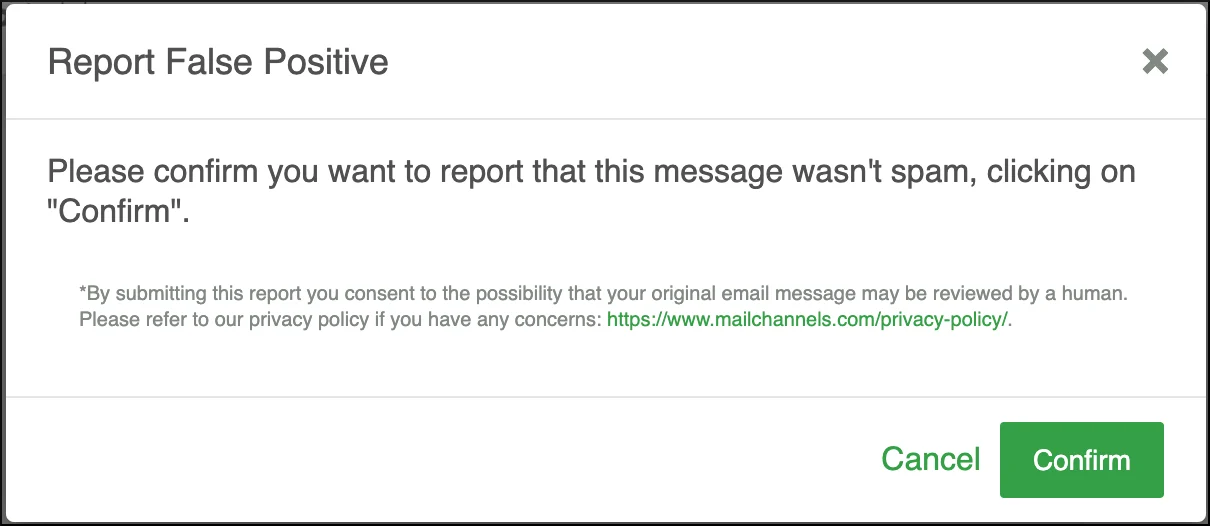
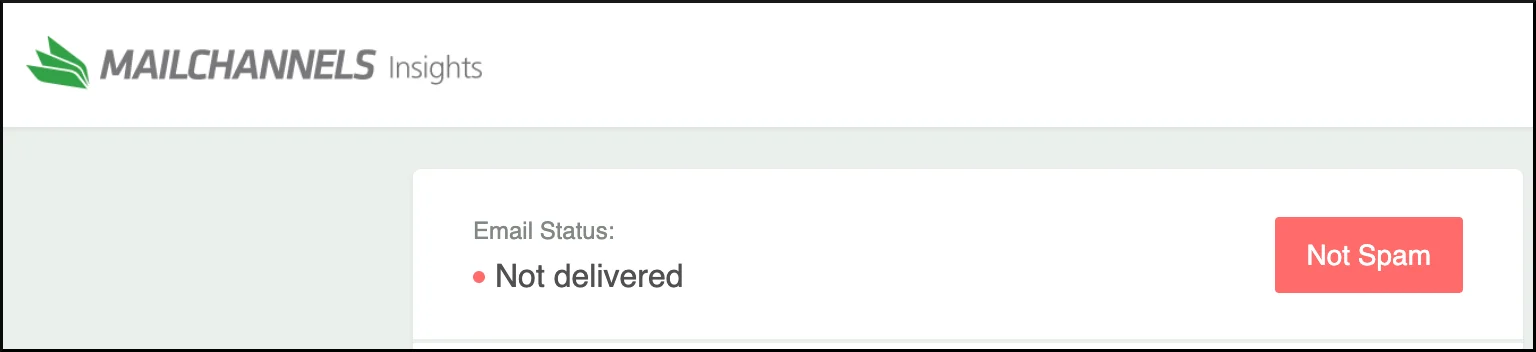 Click **Not Spam**, then click **Confirm** to submit the false positive report. This clears the spam classification and allows the message to be resent.
 ### Step 2 — Contact your service provider
If the Insights page does not include a **Not Spam** button, contact your service provider. They can remediate false positives directly from the Host Console and can enable Insights NDR links on your account if they are not already active.
## For service providers
### Step 1 — Use the Host Console
The **Log Search** area of the [Host Console](https://console.mailchannels.net) is the primary tool for locating and remediating blocked senders.
Log in to the [Host Console](https://console.mailchannels.net) and navigate to **Outbound > Log Search**. Use the search bar or advanced filters to find messages from the affected sender.
### Step 2 — Contact your service provider
If the Insights page does not include a **Not Spam** button, contact your service provider. They can remediate false positives directly from the Host Console and can enable Insights NDR links on your account if they are not already active.
## For service providers
### Step 1 — Use the Host Console
The **Log Search** area of the [Host Console](https://console.mailchannels.net) is the primary tool for locating and remediating blocked senders.
Log in to the [Host Console](https://console.mailchannels.net) and navigate to **Outbound > Log Search**. Use the search bar or advanced filters to find messages from the affected sender.
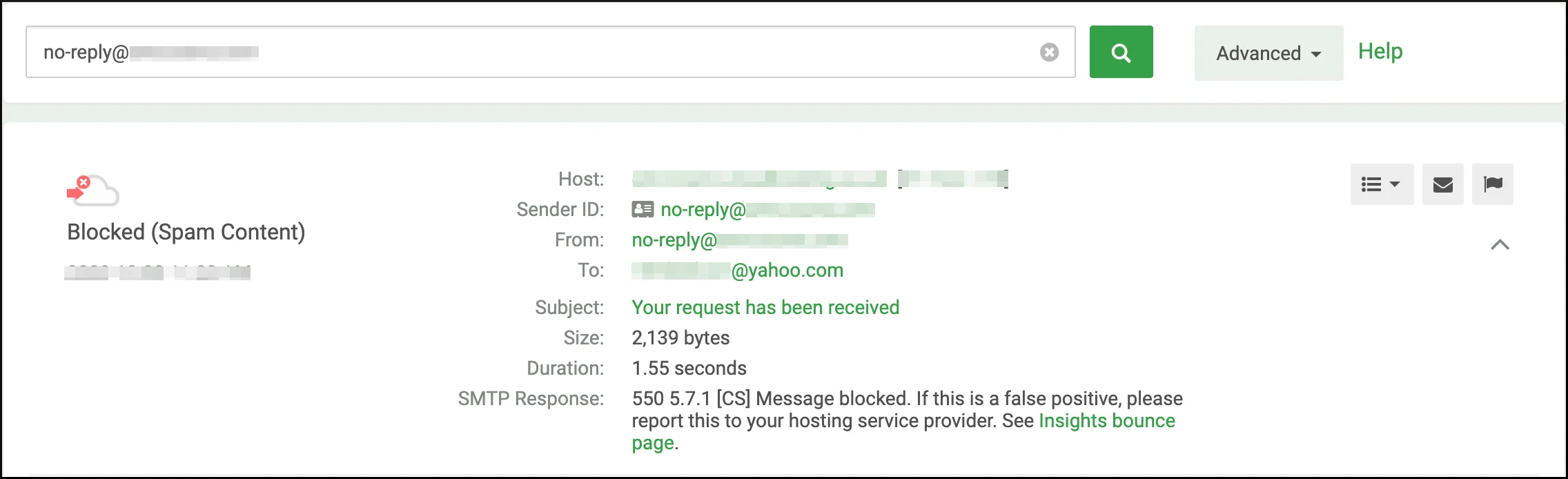 From the log entry, choose the appropriate action based on the block type:
* **See Insights bounce page** — click this link under **SMTP Response** to open the Insights page and click **Not Spam** on behalf of the sender.
* **Send Insights link** — click the
From the log entry, choose the appropriate action based on the block type:
* **See Insights bounce page** — click this link under **SMTP Response** to open the Insights page and click **Not Spam** on behalf of the sender.
* **Send Insights link** — click the  icon to send a fresh Insights link directly to the sender for self-remediation.
* **Report an Issue** — click the
icon to send a fresh Insights link directly to the sender for self-remediation.
* **Report an Issue** — click the  flag icon to open the **Report an Issue** dialog. Enter a title and description, then click **Submit** to create a support ticket. The MailChannels Support team will contact you to resolve the issue.
* **Not Spam** (`[CS]` content spam blocks only) — a **Not Spam** button appears directly on the message details line, allowing immediate remediation without opening a support ticket.
flag icon to open the **Report an Issue** dialog. Enter a title and description, then click **Submit** to create a support ticket. The MailChannels Support team will contact you to resolve the issue.
* **Not Spam** (`[CS]` content spam blocks only) — a **Not Spam** button appears directly on the message details line, allowing immediate remediation without opening a support ticket.
 * **Delist Sender** (`[ESA]` blocks) — click the flag icon to open **Report an Issue**. When an active `[ESA]` block is present, a **Delist Sender** button appears in the dialog. Click it only after the account has been secured and all spam activity has stopped — delisting before securing the account will result in an immediate re-block.
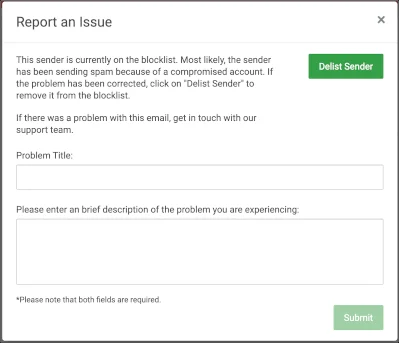 After delisting, you can complete the form to open a support ticket if you need additional context on why the block was applied.
Do not unblock a sender before securing the account. If the underlying issue is not resolved, the account will be blocked again — and automatic self-service unblocking is limited to once every 30 days per account.
### Step 2 — Contact MailChannels Support
Some infractions require additional analysis beyond what the Host Console can resolve. Contact [support@mailchannels.com](mailto:support@mailchannels.com) if:
* The Insights bounce page does not include a **Not Spam** button.
* The sender has been delisted but is being blocked again and you cannot identify the cause.
* You need a detailed breakdown of the abuse events that triggered the block.
When contacting support, include the sender email address, the full SMTP error message, and any relevant log details.
## Best practices before unblocking
Unblocking a sender without addressing the root cause leads to repeat blocks. Before restoring access, verify the following:
* **Password changed** — the sender has set a new, strong password.
* **OS updates applied** — the sender's operating system has the latest security patches installed.
* **Malware scan completed** — a full antivirus and malware scan has been run and any threats removed.
* **Mailing list cleaned** — if the block was triggered by a high invalid-recipient rate (`[IRR]`), invalid addresses have been removed and remaining contacts verified.
* **Sending practices reviewed** — if the block was triggered by feedback loop complaints (`[FBL]`), the sender has reviewed their opt-in practices, unsubscribe links, and message content.
After delisting, you can complete the form to open a support ticket if you need additional context on why the block was applied.
Do not unblock a sender before securing the account. If the underlying issue is not resolved, the account will be blocked again — and automatic self-service unblocking is limited to once every 30 days per account.
### Step 2 — Contact MailChannels Support
Some infractions require additional analysis beyond what the Host Console can resolve. Contact [support@mailchannels.com](mailto:support@mailchannels.com) if:
* The Insights bounce page does not include a **Not Spam** button.
* The sender has been delisted but is being blocked again and you cannot identify the cause.
* You need a detailed breakdown of the abuse events that triggered the block.
When contacting support, include the sender email address, the full SMTP error message, and any relevant log details.
## Best practices before unblocking
Unblocking a sender without addressing the root cause leads to repeat blocks. Before restoring access, verify the following:
* **Password changed** — the sender has set a new, strong password.
* **OS updates applied** — the sender's operating system has the latest security patches installed.
* **Malware scan completed** — a full antivirus and malware scan has been run and any threats removed.
* **Mailing list cleaned** — if the block was triggered by a high invalid-recipient rate (`[IRR]`), invalid addresses have been removed and remaining contacts verified.
* **Sending practices reviewed** — if the block was triggered by feedback loop complaints (`[FBL]`), the sender has reviewed their opt-in practices, unsubscribe links, and message content.