> ## Documentation Index
> Fetch the complete documentation index at: https://docs.mailchannels.com/llms.txt
> Use this file to discover all available pages before exploring further.
# Setup cPanel/WHM
> Route outbound email from cPanel/WHM through MailChannels using the official plugin for automated setup or the Exim Advanced Editor for manual Exim setup.
cPanel & WHM servers run Exim as their MTA. You can connect them to MailChannels Outbound Filtering in two ways: by installing the official MailChannels cPanel plugin (recommended), or by manually adding configuration blocks in WHM's Exim Advanced Editor. This guide covers both paths.
The MailChannels cPanel plugin is the recommended method. It automates most of the configuration and handles cPanel-specific requirements such as hourly email limits and SRS forwarding. Use the manual method only if you cannot install the plugin.
## Path 1: Install the cPanel plugin (recommended)
The MailChannels cPanel plugin configures Exim automatically and stays compatible with cPanel updates. If you previously configured Exim manually, you must remove those manual settings before installing the plugin.
### Requirements
* cPanel & WHM version 68 or higher
* PHP 5.6 or higher
### Installation
Log in to your server as root and run the following command:
```bash theme={null}
wget https://s3.amazonaws.com/mailchannels-reseller/plugins/mailchannels-cpanel-v3-installer \
&& bash mailchannels-cpanel-v3-installer
```
If you are upgrading from the v2 plugin, the installer will prompt you to uninstall it first. If you choose not to, the installer will exit — uninstall v2 manually before proceeding.
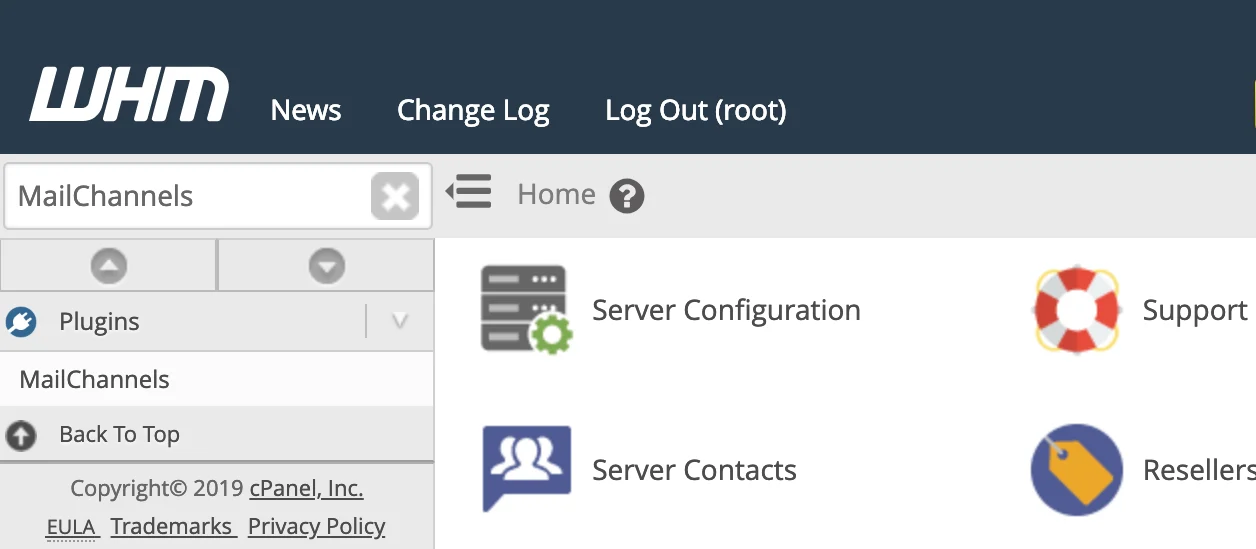
Log in to the cPanel/WHM interface and search for **MailChannels** using the search box in the top-left navigation bar. Click the result to open the plugin in a new tab.
 In the plugin, click **Configuration** in the left navigation bar and expand the **API** section.
Enter your MailChannels API key and click **Update**. Your API key can be created or retrieved from the [Host Console](https://console.mailchannels.net/settings/accountSettings#APIKeys) under **Settings > Account > API Keys**.
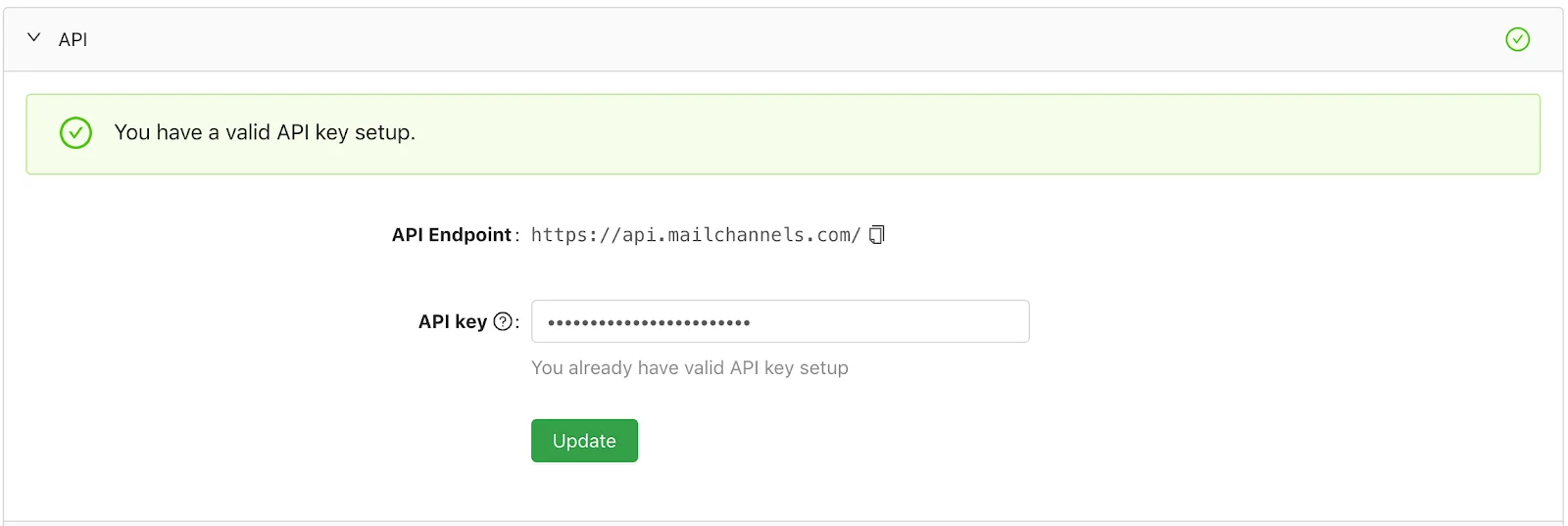
In the plugin, click **Configuration** in the left navigation bar and expand the **API** section.
Enter your MailChannels API key and click **Update**. Your API key can be created or retrieved from the [Host Console](https://console.mailchannels.net/settings/accountSettings#APIKeys) under **Settings > Account > API Keys**.
 Still in **Configuration**, expand the **Outbound** section.
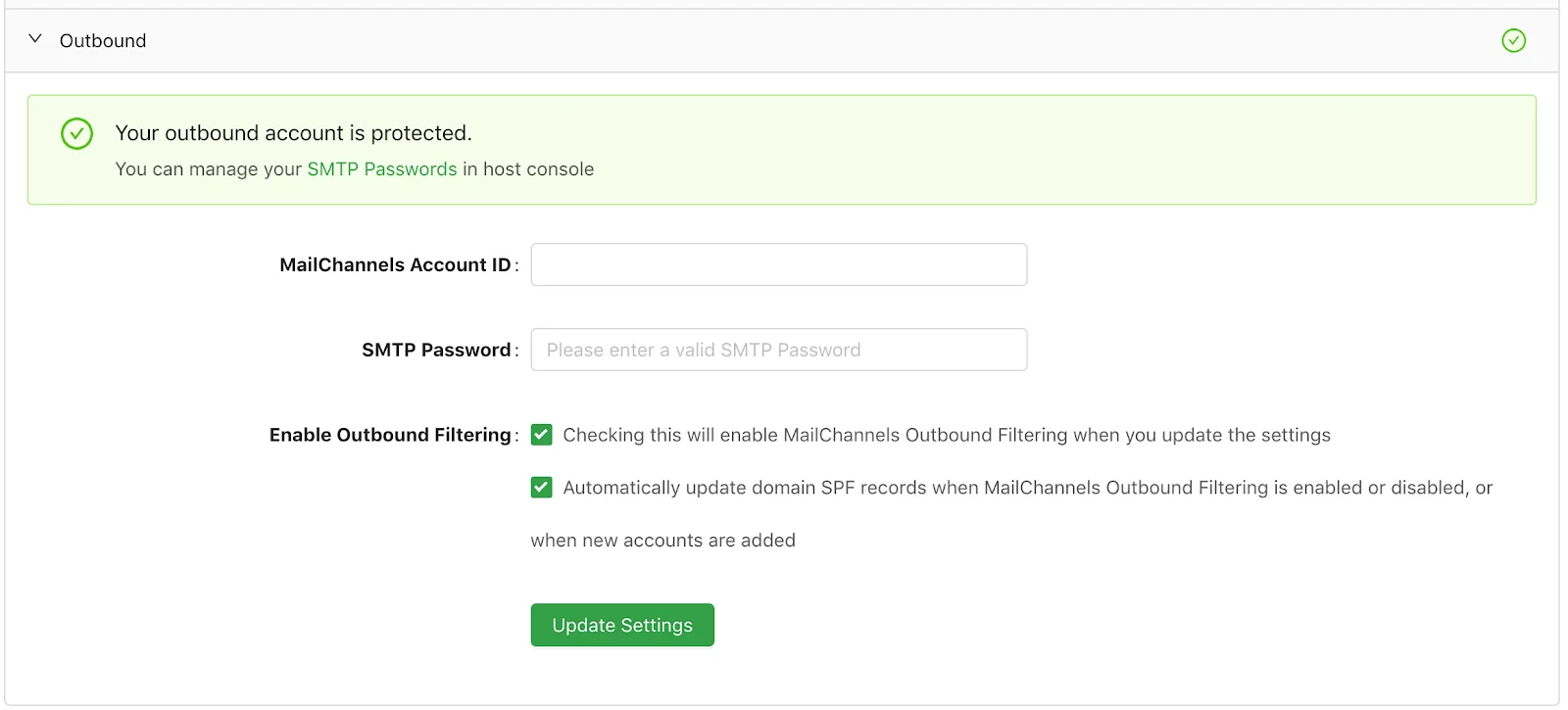 Enter the following values:
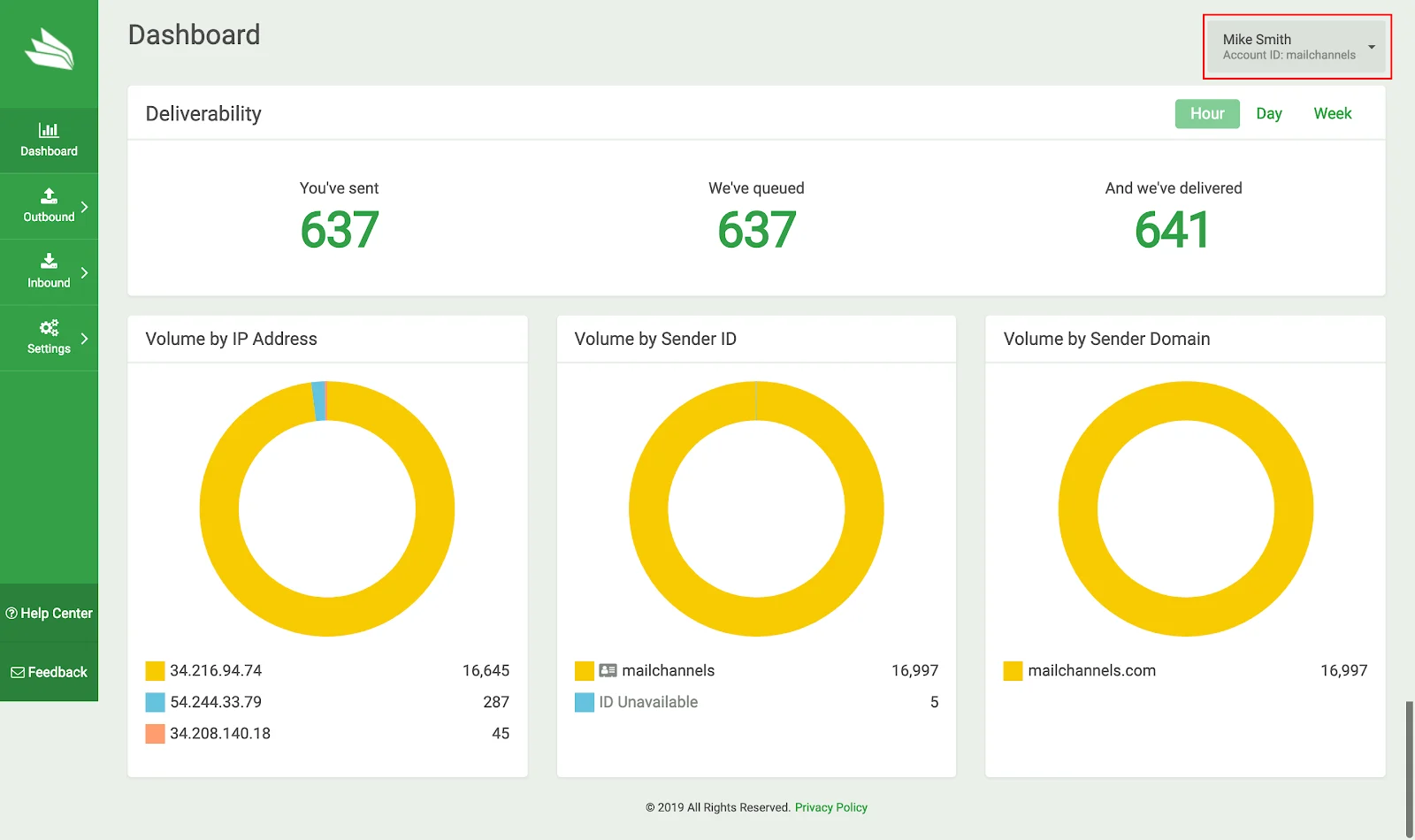
* **MailChannels Account ID** — found in the top-right corner of the [Host Console](https://console.mailchannels.net).
Enter the following values:
* **MailChannels Account ID** — found in the top-right corner of the [Host Console](https://console.mailchannels.net).
 * **SMTP Password** — create or retrieve one in the Host Console under **Settings > Account > SMTP Passwords**.
### Uninstalling
To uninstall the plugin, run the following as root:
```bash theme={null}
/usr/local/mailchannels/bin/uninstall.sh
```
Use the `--purge` flag to also remove log files (`/var/log/mailchannels`) and configuration files (`/etc/mailchannels`):
```bash theme={null}
/usr/local/mailchannels/bin/uninstall.sh --purge
```
If MailChannels Outbound is active, the uninstaller will ask whether to disable it and revert your Exim settings to their previous state. Choosing yes is recommended.
### Known issues
* SPF records are not automatically updated for cPanel sub-domains.
* cPanel servers with 1,000 or more domains may time out before all SPF records are updated.
***
## Path 2: Manual Exim configuration
If you cannot use the plugin, you can configure Exim manually through WHM's Exim Advanced Editor. All of the changes below are made within **Service Configuration > Exim Configuration Manager > Advanced Editor**.
Editing the Exim configuration incorrectly can disrupt email services. Consider exporting your current configuration from the Advanced Editor before making changes.
### Step 1 — Add authentication (Section: AUTH)
This block tells Exim how to authenticate with MailChannels when it connects to `smtp.mailchannels.net`.
Scroll to **Section: AUTH** and add the following block. If `begin authenticators` is already present, do not add it a second time — add only the `mailchannels_login` stanza below it.
```exim Section: AUTH theme={null}
begin authenticators
mailchannels_login:
driver = plaintext
public_name = LOGIN
client_send = : YOUR_USERNAME : YOUR_PASSWORD
```
Replace `YOUR_USERNAME` and `YOUR_PASSWORD` with your actual MailChannels SMTP credentials.
### Step 2 — Add a router (choose one section)
The router tells Exim to send outgoing mail through MailChannels instead of delivering it directly. Choose **one** of the following sections depending on your requirements.
Use this section if you need to respect cPanel's **Max hourly emails per domain** limits. Scroll to **Section: POSTMAILCOUNT** and add the appropriate block for your cPanel version.
**For cPanel v108 or later** (includes SRS support for forwarded mail):
```exim Section: POSTMAILCOUNT — cPanel v108+ theme={null}
send_via_mailchannels:
driver = manualroute
domains = ! +local_domains : ! +manualmx_domains
.ifdef SRSENABLED
transport = ${if eq {$local_part@$domain} \
{$original_local_part@$original_domain} \
{mailchannels_smtp} {mailchannels_forwarded_smtp}}
.else
transport = mailchannels_smtp
.endif
route_list = * smtp.mailchannels.net::25 randomize byname
```
**For cPanel v106 or earlier**:
```exim Section: POSTMAILCOUNT — cPanel v106 and earlier theme={null}
send_via_mailchannels:
driver = manualroute
transport = mailchannels_smtp
domains = ! +local_domains : ! +manualmx_domains
route_list = * smtp.mailchannels.net::25 randomize byname
```
Use this section for a simpler setup. Note that this option bypasses cPanel's hourly email limits for relayed mail.
Scroll to **Section: ROUTERSTART** and add the following block:
```exim Section: ROUTERSTART theme={null}
send_via_mailchannels:
driver = manualroute
domains = ! +local_domains : ! +manualmx_domains
transport = mailchannels_smtp
route_list = * smtp.mailchannels.net::25 randomize byname
host_find_failed = defer
no_more
```
The `domains = ! +local_domains` condition ensures that email addressed to domains hosted locally on the server is delivered directly and not sent to MailChannels.
### Step 3 — Add a transport (Section: TRANSPORTSTART)
The transport defines how Exim connects to MailChannels — including authentication, TLS requirements, the `X-AuthUser` header for sender identification, and DKIM signing.
Scroll to **Section: TRANSPORTSTART** and add the following block. If you are on cPanel v108 or later and chose the POSTMAILCOUNT router above, also add the `mailchannels_forwarded_smtp` block that follows.
**For all cPanel versions — base transport:**
```exim Section: TRANSPORTSTART theme={null}
mailchannels_smtp:
driver = smtp
hosts_require_auth = *
hosts_require_tls = *
tls_tempfail_tryclear = true
headers_add = X-AuthUser: ${if match {$authenticated_id}{.*@.*}\
{$authenticated_id} {${if match {$authenticated_id}{.+}\
{$authenticated_id@$primary_hostname}{$authenticated_id}}}}
dkim_domain = ${perl{get_dkim_domain}}
dkim_selector = default
dkim_canon = relaxed
dkim_private_key = "/var/cpanel/domain_keys/private/${dkim_domain}"
message_linelength_limit = 2048
```
**Additional transport for cPanel v108+ with SRS forwarding:**
```exim Section: TRANSPORTSTART — SRS forwarded transport (v108+) theme={null}
.ifdef SRSENABLED
mailchannels_forwarded_smtp:
driver = smtp
hosts_require_auth = *
hosts_require_tls = *
max_rcpt = 1
return_path = ${srs_encode {SRS_SECRET} {$return_path} {$original_domain}}
tls_tempfail_tryclear = true
headers_add = X-AuthUser: ${if match {$authenticated_id}{.*@.*}\
{$authenticated_id} {${if match {$authenticated_id}{.+}\
{$authenticated_id@$primary_hostname}{$authenticated_id}}}}
dkim_domain = ${perl{get_dkim_domain}}
dkim_selector = default
dkim_canon = relaxed
dkim_private_key = "/var/cpanel/domain_keys/private/${dkim_domain}"
message_linelength_limit = 2048
.endif
```
The `X-AuthUser` header gives MailChannels the identity of the sending cPanel user. The `dkim_*` lines sign outgoing messages with cPanel's standard DKIM keys. The `max_rcpt = 1` setting on the forwarded transport is required for SRS to rewrite the return path correctly for each recipient.
### Step 4 — Save the configuration
Scroll to the bottom of the Advanced Editor page and click **Save**. WHM will validate the configuration and restart Exim. Watch for any error messages — if the save fails, review the error output and correct the relevant section.
***
## Optional configurations
### Exclude or restrict specific domains
Modify the `send_via_mailchannels` router to control which senders and recipients are routed through MailChannels.
```exim Route only specific sender domains theme={null}
# Add inside the send_via_mailchannels router block
senders = *@example.com : *@another.com
```
```exim Exclude specific sender domains theme={null}
# Add inside the send_via_mailchannels router block
senders = !*@exclude-this.com : !*@exclude-that.net
```
```exim Exclude specific recipient domains theme={null}
# Modify the domains line inside the send_via_mailchannels router block
domains = !dont-relay-to-this.com : !dont-relay-to-that.org : ! +local_domains
```
For exclusion rules covering many domains, use Exim's file-based domain lists. See the [advanced Exim configuration guide](/outbound/mta/setup-exim) for details.
### Exim queue optimization
Add these settings in the appropriate sections of the Advanced Editor to tune queue and retry behavior.
**Section: RETRYSTART** — MailChannels recommended retry timing:
```exim Section: RETRYSTART theme={null}
* data_4xx F,4h,1m
* rcpt_4xx F,4h,1m
* timeout F,4h,1m
* refused F,1h,5m
* lost_connection F,1h,1m
* * F,6h,5m
```
**Section: main** — queue runner limits and frozen message handling:
```exim Section: main theme={null}
queue_run_max = 50
timeout_frozen_after = 12h
ignore_bounce_errors_after = 1h
```
**Queue runner frequency** — edit `/etc/sysconfig/exim` (CentOS/RHEL/CloudLinux) or `/etc/default/exim` (Debian/Ubuntu):
```bash theme={null}
QUEUE=60s
```
After making any changes outside the WHM Advanced Editor, restart Exim manually:
```bash theme={null}
/scripts/restartsrv_exim
```
* **SMTP Password** — create or retrieve one in the Host Console under **Settings > Account > SMTP Passwords**.
### Uninstalling
To uninstall the plugin, run the following as root:
```bash theme={null}
/usr/local/mailchannels/bin/uninstall.sh
```
Use the `--purge` flag to also remove log files (`/var/log/mailchannels`) and configuration files (`/etc/mailchannels`):
```bash theme={null}
/usr/local/mailchannels/bin/uninstall.sh --purge
```
If MailChannels Outbound is active, the uninstaller will ask whether to disable it and revert your Exim settings to their previous state. Choosing yes is recommended.
### Known issues
* SPF records are not automatically updated for cPanel sub-domains.
* cPanel servers with 1,000 or more domains may time out before all SPF records are updated.
***
## Path 2: Manual Exim configuration
If you cannot use the plugin, you can configure Exim manually through WHM's Exim Advanced Editor. All of the changes below are made within **Service Configuration > Exim Configuration Manager > Advanced Editor**.
Editing the Exim configuration incorrectly can disrupt email services. Consider exporting your current configuration from the Advanced Editor before making changes.
### Step 1 — Add authentication (Section: AUTH)
This block tells Exim how to authenticate with MailChannels when it connects to `smtp.mailchannels.net`.
Scroll to **Section: AUTH** and add the following block. If `begin authenticators` is already present, do not add it a second time — add only the `mailchannels_login` stanza below it.
```exim Section: AUTH theme={null}
begin authenticators
mailchannels_login:
driver = plaintext
public_name = LOGIN
client_send = : YOUR_USERNAME : YOUR_PASSWORD
```
Replace `YOUR_USERNAME` and `YOUR_PASSWORD` with your actual MailChannels SMTP credentials.
### Step 2 — Add a router (choose one section)
The router tells Exim to send outgoing mail through MailChannels instead of delivering it directly. Choose **one** of the following sections depending on your requirements.
Use this section if you need to respect cPanel's **Max hourly emails per domain** limits. Scroll to **Section: POSTMAILCOUNT** and add the appropriate block for your cPanel version.
**For cPanel v108 or later** (includes SRS support for forwarded mail):
```exim Section: POSTMAILCOUNT — cPanel v108+ theme={null}
send_via_mailchannels:
driver = manualroute
domains = ! +local_domains : ! +manualmx_domains
.ifdef SRSENABLED
transport = ${if eq {$local_part@$domain} \
{$original_local_part@$original_domain} \
{mailchannels_smtp} {mailchannels_forwarded_smtp}}
.else
transport = mailchannels_smtp
.endif
route_list = * smtp.mailchannels.net::25 randomize byname
```
**For cPanel v106 or earlier**:
```exim Section: POSTMAILCOUNT — cPanel v106 and earlier theme={null}
send_via_mailchannels:
driver = manualroute
transport = mailchannels_smtp
domains = ! +local_domains : ! +manualmx_domains
route_list = * smtp.mailchannels.net::25 randomize byname
```
Use this section for a simpler setup. Note that this option bypasses cPanel's hourly email limits for relayed mail.
Scroll to **Section: ROUTERSTART** and add the following block:
```exim Section: ROUTERSTART theme={null}
send_via_mailchannels:
driver = manualroute
domains = ! +local_domains : ! +manualmx_domains
transport = mailchannels_smtp
route_list = * smtp.mailchannels.net::25 randomize byname
host_find_failed = defer
no_more
```
The `domains = ! +local_domains` condition ensures that email addressed to domains hosted locally on the server is delivered directly and not sent to MailChannels.
### Step 3 — Add a transport (Section: TRANSPORTSTART)
The transport defines how Exim connects to MailChannels — including authentication, TLS requirements, the `X-AuthUser` header for sender identification, and DKIM signing.
Scroll to **Section: TRANSPORTSTART** and add the following block. If you are on cPanel v108 or later and chose the POSTMAILCOUNT router above, also add the `mailchannels_forwarded_smtp` block that follows.
**For all cPanel versions — base transport:**
```exim Section: TRANSPORTSTART theme={null}
mailchannels_smtp:
driver = smtp
hosts_require_auth = *
hosts_require_tls = *
tls_tempfail_tryclear = true
headers_add = X-AuthUser: ${if match {$authenticated_id}{.*@.*}\
{$authenticated_id} {${if match {$authenticated_id}{.+}\
{$authenticated_id@$primary_hostname}{$authenticated_id}}}}
dkim_domain = ${perl{get_dkim_domain}}
dkim_selector = default
dkim_canon = relaxed
dkim_private_key = "/var/cpanel/domain_keys/private/${dkim_domain}"
message_linelength_limit = 2048
```
**Additional transport for cPanel v108+ with SRS forwarding:**
```exim Section: TRANSPORTSTART — SRS forwarded transport (v108+) theme={null}
.ifdef SRSENABLED
mailchannels_forwarded_smtp:
driver = smtp
hosts_require_auth = *
hosts_require_tls = *
max_rcpt = 1
return_path = ${srs_encode {SRS_SECRET} {$return_path} {$original_domain}}
tls_tempfail_tryclear = true
headers_add = X-AuthUser: ${if match {$authenticated_id}{.*@.*}\
{$authenticated_id} {${if match {$authenticated_id}{.+}\
{$authenticated_id@$primary_hostname}{$authenticated_id}}}}
dkim_domain = ${perl{get_dkim_domain}}
dkim_selector = default
dkim_canon = relaxed
dkim_private_key = "/var/cpanel/domain_keys/private/${dkim_domain}"
message_linelength_limit = 2048
.endif
```
The `X-AuthUser` header gives MailChannels the identity of the sending cPanel user. The `dkim_*` lines sign outgoing messages with cPanel's standard DKIM keys. The `max_rcpt = 1` setting on the forwarded transport is required for SRS to rewrite the return path correctly for each recipient.
### Step 4 — Save the configuration
Scroll to the bottom of the Advanced Editor page and click **Save**. WHM will validate the configuration and restart Exim. Watch for any error messages — if the save fails, review the error output and correct the relevant section.
***
## Optional configurations
### Exclude or restrict specific domains
Modify the `send_via_mailchannels` router to control which senders and recipients are routed through MailChannels.
```exim Route only specific sender domains theme={null}
# Add inside the send_via_mailchannels router block
senders = *@example.com : *@another.com
```
```exim Exclude specific sender domains theme={null}
# Add inside the send_via_mailchannels router block
senders = !*@exclude-this.com : !*@exclude-that.net
```
```exim Exclude specific recipient domains theme={null}
# Modify the domains line inside the send_via_mailchannels router block
domains = !dont-relay-to-this.com : !dont-relay-to-that.org : ! +local_domains
```
For exclusion rules covering many domains, use Exim's file-based domain lists. See the [advanced Exim configuration guide](/outbound/mta/setup-exim) for details.
### Exim queue optimization
Add these settings in the appropriate sections of the Advanced Editor to tune queue and retry behavior.
**Section: RETRYSTART** — MailChannels recommended retry timing:
```exim Section: RETRYSTART theme={null}
* data_4xx F,4h,1m
* rcpt_4xx F,4h,1m
* timeout F,4h,1m
* refused F,1h,5m
* lost_connection F,1h,1m
* * F,6h,5m
```
**Section: main** — queue runner limits and frozen message handling:
```exim Section: main theme={null}
queue_run_max = 50
timeout_frozen_after = 12h
ignore_bounce_errors_after = 1h
```
**Queue runner frequency** — edit `/etc/sysconfig/exim` (CentOS/RHEL/CloudLinux) or `/etc/default/exim` (Debian/Ubuntu):
```bash theme={null}
QUEUE=60s
```
After making any changes outside the WHM Advanced Editor, restart Exim manually:
```bash theme={null}
/scripts/restartsrv_exim
```