> ## Documentation Index
> Fetch the complete documentation index at: https://docs.mailchannels.com/llms.txt
> Use this file to discover all available pages before exploring further.
# Setup IIS
> Configure IIS SMTP to relay outbound mail through MailChannels Outbound Filtering using smart host settings and SMTP authentication.
This guide walks you through configuring IIS SMTP to relay all outbound mail through MailChannels Outbound Filtering.
## Prerequisites
* A Windows host with IIS SMTP installed and configured
* Your MailChannels SMTP username and password
## Configure the relay
Open **IIS Manager**, right-click on the SMTP virtual server, and choose **Properties** from the menu.
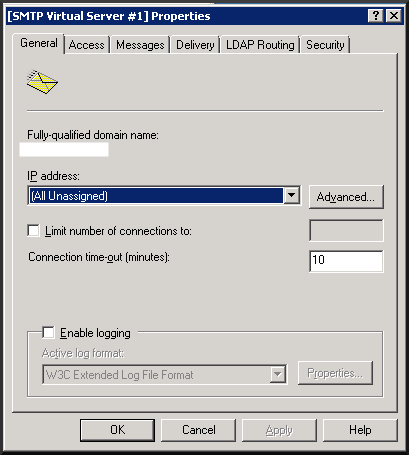 Click the **Delivery** tab, then click **Advanced**.
In the **Smart host** field, enter:
```text theme={null}
smtp.mailchannels.net
```
Click **OK** to save.
Still on the **Delivery** tab, click the **Security** tab.
Select **Basic Authentication** if it is not already the default. Enter your MailChannels SMTP username and password into the **User name** and **Password** fields, then click **OK**.
## Troubleshooting
**Port 25 is blocked** — MailChannels supports connections on ports `2525`, `465`, and `587` as alternatives to port 25. To change the outbound port:
1. Open **IIS Manager** and right-click on the SMTP virtual server. Choose **Properties**.
2. Click the **Delivery** tab, then click **Outbound Connections**.
Click the **Delivery** tab, then click **Advanced**.
In the **Smart host** field, enter:
```text theme={null}
smtp.mailchannels.net
```
Click **OK** to save.
Still on the **Delivery** tab, click the **Security** tab.
Select **Basic Authentication** if it is not already the default. Enter your MailChannels SMTP username and password into the **User name** and **Password** fields, then click **OK**.
## Troubleshooting
**Port 25 is blocked** — MailChannels supports connections on ports `2525`, `465`, and `587` as alternatives to port 25. To change the outbound port:
1. Open **IIS Manager** and right-click on the SMTP virtual server. Choose **Properties**.
2. Click the **Delivery** tab, then click **Outbound Connections**.
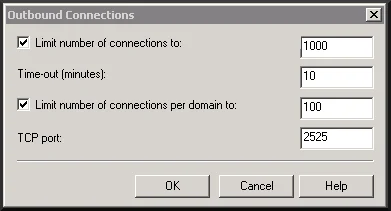 3. In the **Outbound Connections** dialog, change the **TCP port** value to your desired port and click **OK**.