> ## Documentation Index
> Fetch the complete documentation index at: https://docs.mailchannels.com/llms.txt
> Use this file to discover all available pages before exploring further.
# MailChannels Insights: email delivery reports for users
> Give end users a personalized delivery report page linked from bounce emails, so they can self-serve delivery issues without contacting your support team.
MailChannels Insights is a self-service delivery reporting feature for the end users on your network. When a message is not delivered, Insights gives that user a personalized page showing what MailChannels knows about the bounced message — the rejection reason, metadata from the message, and a view into all of their recent sending history. Users can diagnose most common delivery problems themselves, which reduces the volume of support tickets your team receives.
## What users see on an Insights page
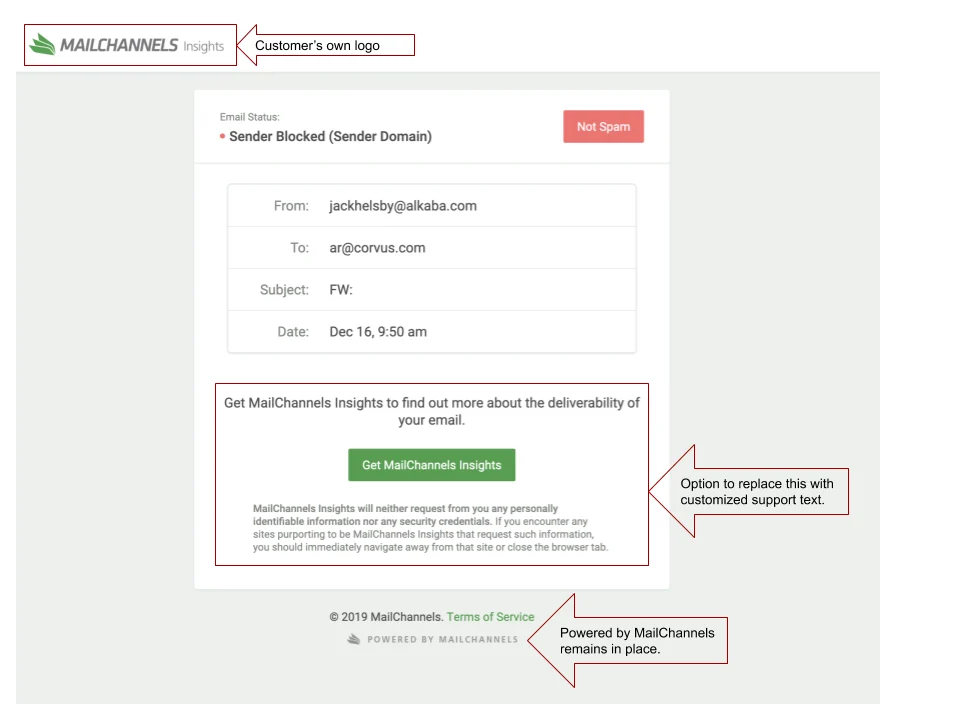
An Insights page is tailored to the specific user and the specific bounce. It shows:
* **Why the message was not delivered** — the rejection reason is displayed prominently at the top of the page, making it easy for users to understand what went wrong without any technical background.
* **Message metadata** — headers and other details from the bounced message are displayed in a table so users can confirm they are looking at the correct message.
* **Full sending history** — the Insights Log Search page gives users a personalized view of all messages they have sent through MailChannels, including delivery status for each one. Users can search this history to find specific messages or narrow down a pattern of failures.
## How Insights links appear in bounce emails
When a message is not delivered, MailChannels generates a bounce (non-delivery report) email and sends it back to the sender. If you have enabled Insights for your account, the bounce message contains a **Get Insights** button or link. Clicking it takes the user directly to their personalized Insights page without requiring them to create an account or log in.
To enable Insights links in bounce messages:
1. Log in to the [MailChannels Host Console](https://console.mailchannels.net).
2. Go to **Settings > Account**.
3. Find the **MailChannels Insights** configuration panel and enable the option to include Insights links in bounce messages.
Once this setting is enabled, every bounce message generated by MailChannels for your users will include an Insights link automatically. You do not need to take any action on a per-user or per-message basis.
## Enroll a user manually
You can also invite a specific user to Insights directly from the Host Console without waiting for a bounce event:
Navigate to **Outbound > Log Search** in the Host Console.
Search for a message sent by the user you want to invite.
Click the **envelope icon** in the top-right corner of the log entry, or click the **Invite to MailChannels Insights** link in the expanded view of the entry. MailChannels sends the user an email containing a link to their personalized Insights log search page.
Use manual enrollment proactively when a user contacts support about a delivery issue. Sending them an Insights invitation lets them verify the problem and monitor their sending going forward, reducing the chance they contact support again for the same issue.
## White-label Insights with your logo
Insights branding is available on Standard plans and above.
You can replace the default MailChannels branding on Insights pages with your own logo, favicon, and a custom support message, so the experience feels native to your hosting platform.
### Image requirements
| Element | Format | Max dimensions | Max file size |
| ------- | ------ | -------------- | ------------- |
| Logo | PNG | 50 × 410 px | 10 MB |
| Favicon | PNG | — | 10 MB |
 ### Upload your branding
Log in to the [Host Console](https://console.mailchannels.net) as an administrator and navigate to **Settings > Account > Insights Branding**.
### Upload your branding
Log in to the [Host Console](https://console.mailchannels.net) as an administrator and navigate to **Settings > Account > Insights Branding**.
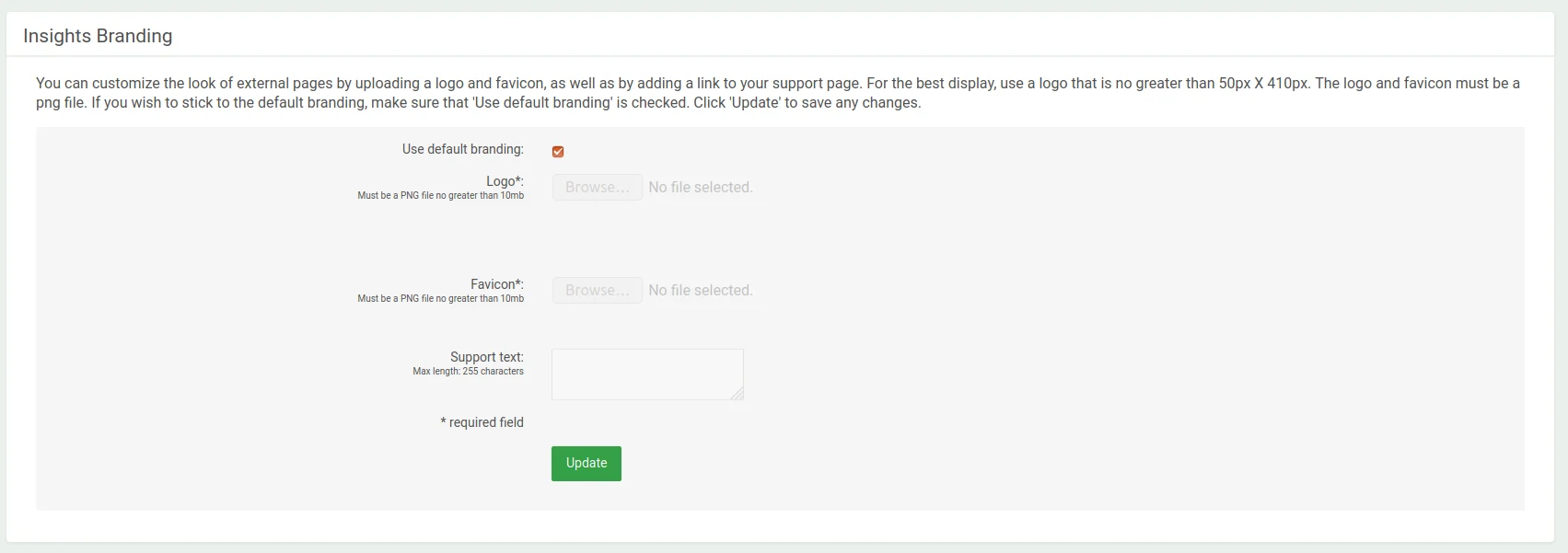 Under **Logo**, click **Browse** and select your PNG logo file. Under **Favicon**, click **Browse** and select your PNG favicon file. Both fields are required.
Under **Support Text**, enter a plain-text message to display on Insights pages — for example, contact details or a support URL. Leave blank to show no text.
Click **Upload** to apply your branding.
The Insights URL continues to point to `console.mailchannels.net` regardless of branding. Sub-accounts have separate branding from their parent — log in as a sub-account console user to update it. Do not use the MailChannels logo in your custom branding.
## How Insights reduces support burden
Without Insights, a user who receives a bounce message typically contacts your support team to ask what went wrong. Your team must then look up the message in Log Search, interpret the rejection reason, and relay that information back to the user. Insights short-circuits that loop by putting the same information directly in the hands of the user the moment they receive the bounce. Users who can self-diagnose and see their full sending history are less likely to generate follow-up tickets.
Under **Logo**, click **Browse** and select your PNG logo file. Under **Favicon**, click **Browse** and select your PNG favicon file. Both fields are required.
Under **Support Text**, enter a plain-text message to display on Insights pages — for example, contact details or a support URL. Leave blank to show no text.
Click **Upload** to apply your branding.
The Insights URL continues to point to `console.mailchannels.net` regardless of branding. Sub-accounts have separate branding from their parent — log in as a sub-account console user to update it. Do not use the MailChannels logo in your custom branding.
## How Insights reduces support burden
Without Insights, a user who receives a bounce message typically contacts your support team to ask what went wrong. Your team must then look up the message in Log Search, interpret the rejection reason, and relay that information back to the user. Insights short-circuits that loop by putting the same information directly in the hands of the user the moment they receive the bounce. Users who can self-diagnose and see their full sending history are less likely to generate follow-up tickets.