> ## Documentation Index
> Fetch the complete documentation index at: https://docs.mailchannels.com/llms.txt
> Use this file to discover all available pages before exploring further.
# Create an EML file
> How to export a raw email message as an EML file from Gmail, Outlook, or Mac Mail to submit with a false positive or false negative report.
When reporting a false positive or false negative to MailChannels Support, you may be asked to provide the complete message as an EML file. This file contains the full headers and body of the message, which allows our analysts to quickly review the raw content and determine whether the classification was correct.
When saving, choose **unformatted** or **raw** if the option is available. The EML file must be a plain-text representation of the message including all headers.
## Gmail
In Gmail, open the message. Click the **⋮** menu (top right of the message) and select **Show original**.
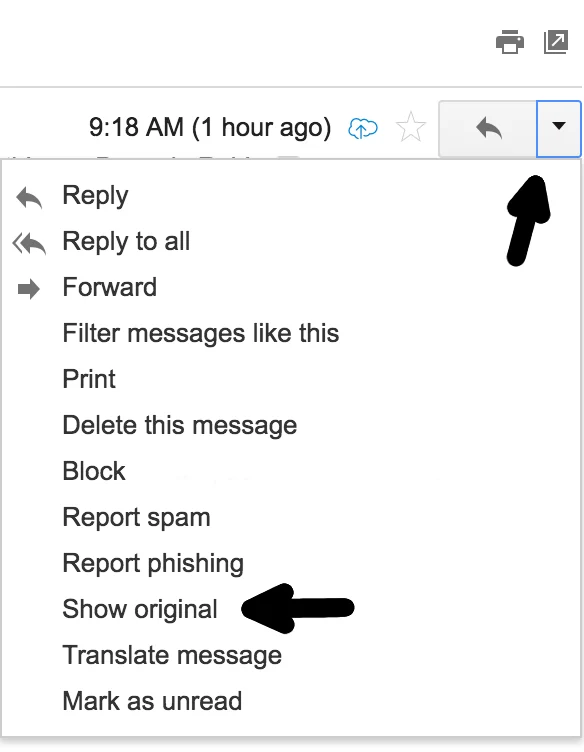 On the Original Message page, click **Download Original** in the bottom-left corner. Save the file with a descriptive name and the `.eml` extension (e.g. `sender@example.com-2024-06-01.eml`). If the dialog appends `.txt`, change the file type to **All Files**.
Attach the `.eml` file to your support ticket or email it to [support@mailchannels.com](mailto:support@mailchannels.com) with your ticket number.
## Outlook
Open the message in Outlook. In the **Message** window, locate the **Tags** group and click the small anchor icon at the bottom-left to open **Message Properties**.
In the **Internet Headers** section at the bottom of the dialog, select all text (Ctrl+A) and copy it (Ctrl+C). Close the dialog.
Open a text editor, paste the headers, and save the file with the `.eml` extension. If the dialog appends `.txt`, change the file type to **All Files**.
Attach the `.eml` file to your support ticket or email it to [support@mailchannels.com](mailto:support@mailchannels.com) with your ticket number.
## Mac Mail
In Mac Mail, click the message to highlight it.
Go to **File > Save As**. Set the **Format** to **Raw** and click **Save**. The file is saved to your desktop.
Attach the `.eml` file to your support ticket or email it to [support@mailchannels.com](mailto:support@mailchannels.com) with your ticket number.
On the Original Message page, click **Download Original** in the bottom-left corner. Save the file with a descriptive name and the `.eml` extension (e.g. `sender@example.com-2024-06-01.eml`). If the dialog appends `.txt`, change the file type to **All Files**.
Attach the `.eml` file to your support ticket or email it to [support@mailchannels.com](mailto:support@mailchannels.com) with your ticket number.
## Outlook
Open the message in Outlook. In the **Message** window, locate the **Tags** group and click the small anchor icon at the bottom-left to open **Message Properties**.
In the **Internet Headers** section at the bottom of the dialog, select all text (Ctrl+A) and copy it (Ctrl+C). Close the dialog.
Open a text editor, paste the headers, and save the file with the `.eml` extension. If the dialog appends `.txt`, change the file type to **All Files**.
Attach the `.eml` file to your support ticket or email it to [support@mailchannels.com](mailto:support@mailchannels.com) with your ticket number.
## Mac Mail
In Mac Mail, click the message to highlight it.
Go to **File > Save As**. Set the **Format** to **Raw** and click **Save**. The file is saved to your desktop.
Attach the `.eml` file to your support ticket or email it to [support@mailchannels.com](mailto:support@mailchannels.com) with your ticket number.