> ## Documentation Index
> Fetch the complete documentation index at: https://docs.mailchannels.com/llms.txt
> Use this file to discover all available pages before exploring further.
# Account settings
> Manage your MailChannels Outbound Filtering account: SMTP passwords, console users, Google Sign-On, API keys, and Insights settings.
The [MailChannels Host Console](https://console.mailchannels.net) is the central interface for managing your Outbound Filtering account. This page covers the settings available under **Settings > Account**.
## Create an account or log in
To sign up, visit [mailchannels.com/pricing](https://www.mailchannels.com/pricing/) and choose Outbound Filtering or Inbound Filtering. You can also [request a free trial](https://mailchannels.com/contact-sales).
To log in, go to [console.mailchannels.net](https://console.mailchannels.net). You can sign in with your email and password or use **Sign in with Google**.
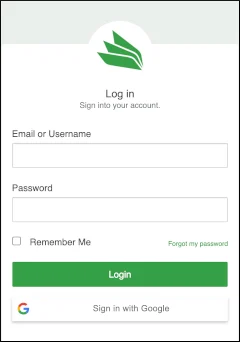 To enable Google Sign-On for an existing account, log in as a Superuser and navigate to **Settings > Account > Google Sign-On Domains**. Click **Add Domain** and complete the form.
 ## SMTP Passwords
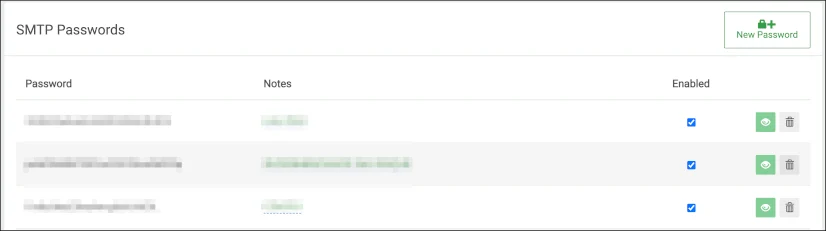
Your account has a single SMTP username (Account ID). You can create multiple SMTP passwords — one per mail server or logical group — from **Settings > Account > SMTP Passwords**.
## SMTP Passwords
Your account has a single SMTP username (Account ID). You can create multiple SMTP passwords — one per mail server or logical group — from **Settings > Account > SMTP Passwords**.
 ## Console Users
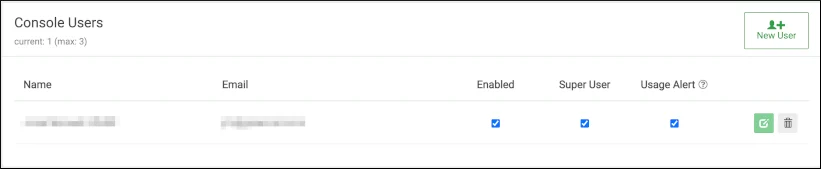
Console Users are administrators with access to the Host Console. Each user has a name, login email, enabled/disabled state, and the following options:
| Option | Description |
| ---------------- | ---------------------------------------------------------------------------- |
| **Super User** | Required to access the Accounts and Billing areas under Settings |
| **Usage Alerts** | Receives billing volume and overage warning emails (not spam monitor alerts) |
## Console Users
Console Users are administrators with access to the Host Console. Each user has a name, login email, enabled/disabled state, and the following options:
| Option | Description |
| ---------------- | ---------------------------------------------------------------------------- |
| **Super User** | Required to access the Accounts and Billing areas under Settings |
| **Usage Alerts** | Receives billing volume and overage warning emails (not spam monitor alerts) |
 Starter and Lite plans limit the number of console users that can be created. Upgrade your plan to add more.
**To add a new console user:**
1. Navigate to **Settings** > **Account** > **Console Users**.
2. Click **New User**.
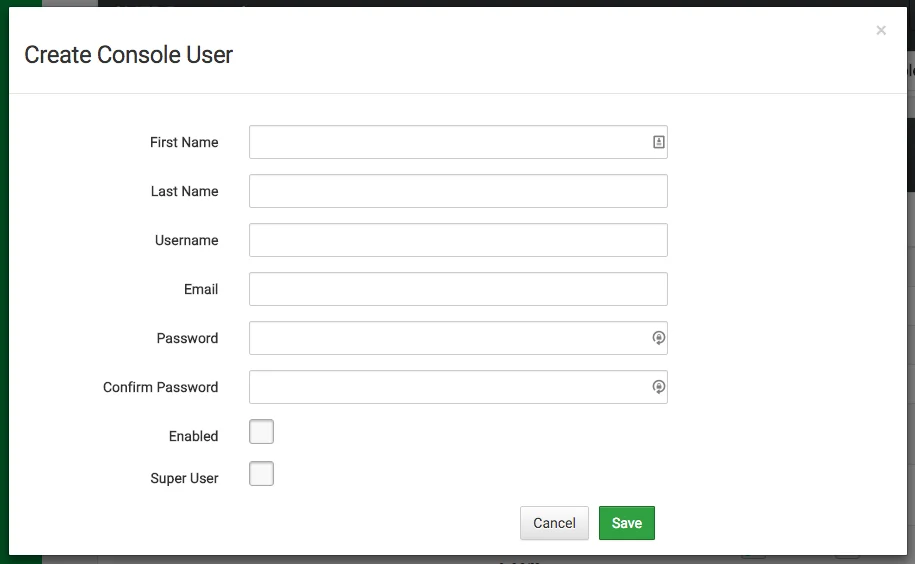
3. Enter the user's name and email address, set a password, and configure their access permissions.
4. Click **Save**.
Starter and Lite plans limit the number of console users that can be created. Upgrade your plan to add more.
**To add a new console user:**
1. Navigate to **Settings** > **Account** > **Console Users**.
2. Click **New User**.
3. Enter the user's name and email address, set a password, and configure their access permissions.
4. Click **Save**.
 ## Google Sign-On Domains
Lists the domains permitted to sign in to your Host Console using Google authentication.
## Google Sign-On Domains
Lists the domains permitted to sign in to your Host Console using Google authentication.
 ## API Keys
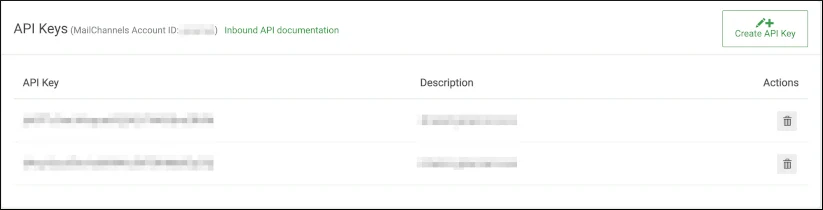
API keys are used to group and secure inbound filtering domains. A domain can be associated with a single key or left unpaired. Keys created here are assigned to domains in **Inbound > Domains**.
## API Keys
API keys are used to group and secure inbound filtering domains. A domain can be associated with a single key or left unpaired. Keys created here are assigned to domains in **Inbound > Domains**.
 ## Insights
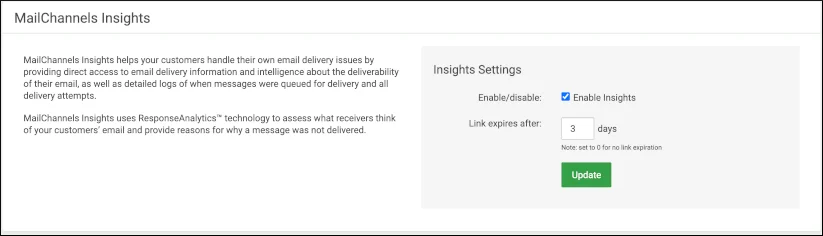
Insights embeds a customized link in NDR bounce messages, giving your users a self-service way to report false positives without contacting support. The link leads to a page showing the reason for the rejection and a **Not Spam** button.
You can enable or disable Insights from **Settings > Account > Insights**, and set how long Insights links remain active before expiring.
## Insights
Insights embeds a customized link in NDR bounce messages, giving your users a self-service way to report false positives without contacting support. The link leads to a page showing the reason for the rejection and a **Not Spam** button.
You can enable or disable Insights from **Settings > Account > Insights**, and set how long Insights links remain active before expiring.
 ## Insights Branding
Customize the logo, favicon, and support text shown on Insights pages. Available on Standard plans and above.
## Insights Branding
Customize the logo, favicon, and support text shown on Insights pages. Available on Standard plans and above.
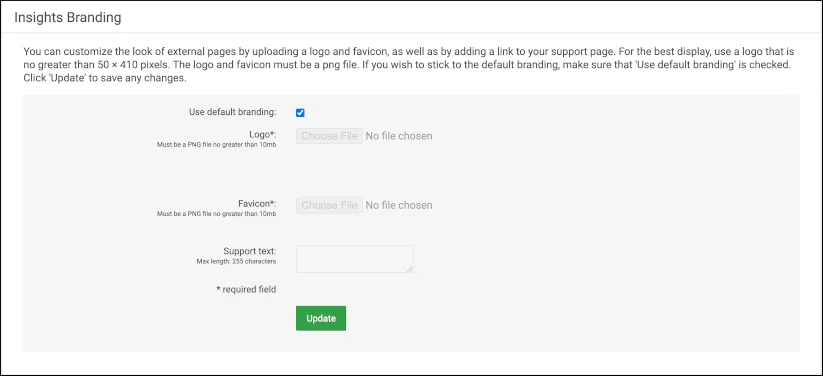 To upload custom branding, see [White-label Insights with your logo](/outbound/insights#white-label-insights-with-your-logo).