> ## Documentation Index
> Fetch the complete documentation index at: https://docs.mailchannels.com/llms.txt
> Use this file to discover all available pages before exploring further.
# Safelists and blocklists in MailChannels Inbound Filtering
> Manage global, per-domain, and user-level safelists and blocklists to control which senders, domains, and IP addresses are allowed or blocked.
MailChannels Inbound Filtering gives you three layers of control over which messages are allowed or blocked: global lists that hosting providers manage across all domains, per-domain lists that domain admins manage for individual domains, and user-level lists that mailbox users manage for their own accounts. Each layer can override the one above it ? user-level settings take the highest precedence, followed by per-domain, then global. Within any layer, safelists take precedence over blocklists.
 ## Global safelists and blocklists
Global lists are managed from the Host Console and apply to every domain in your account ? including domains you add in the future. As soon as you add an entry to a global list, it takes effect immediately for all current and future domains.
You can add any of the following entry types to a global safelist or blocklist:
* **Email address** ? for example, `newsletter@example.com`
* **Domain** ? for example, `example.com`
* **IP address** ? for example, `192.0.2.1`
MailChannels automatically detects the entry type when you add it, so you do not need to categorize it manually. You can filter the list by type or search for a specific entry using either an exact match or a partial match.
### Add a global safelist or blocklist entry
1. Sign in to the [Host Console](https://console.mailchannels.net).
2. From the left navigation, click **Inbound**, then click **Global Safelist** or **Global Blocklist**.
3. Click **Add New Safelist Items** (or **Add New Blocklist Items**).
## Global safelists and blocklists
Global lists are managed from the Host Console and apply to every domain in your account ? including domains you add in the future. As soon as you add an entry to a global list, it takes effect immediately for all current and future domains.
You can add any of the following entry types to a global safelist or blocklist:
* **Email address** ? for example, `newsletter@example.com`
* **Domain** ? for example, `example.com`
* **IP address** ? for example, `192.0.2.1`
MailChannels automatically detects the entry type when you add it, so you do not need to categorize it manually. You can filter the list by type or search for a specific entry using either an exact match or a partial match.
### Add a global safelist or blocklist entry
1. Sign in to the [Host Console](https://console.mailchannels.net).
2. From the left navigation, click **Inbound**, then click **Global Safelist** or **Global Blocklist**.
3. Click **Add New Safelist Items** (or **Add New Blocklist Items**).
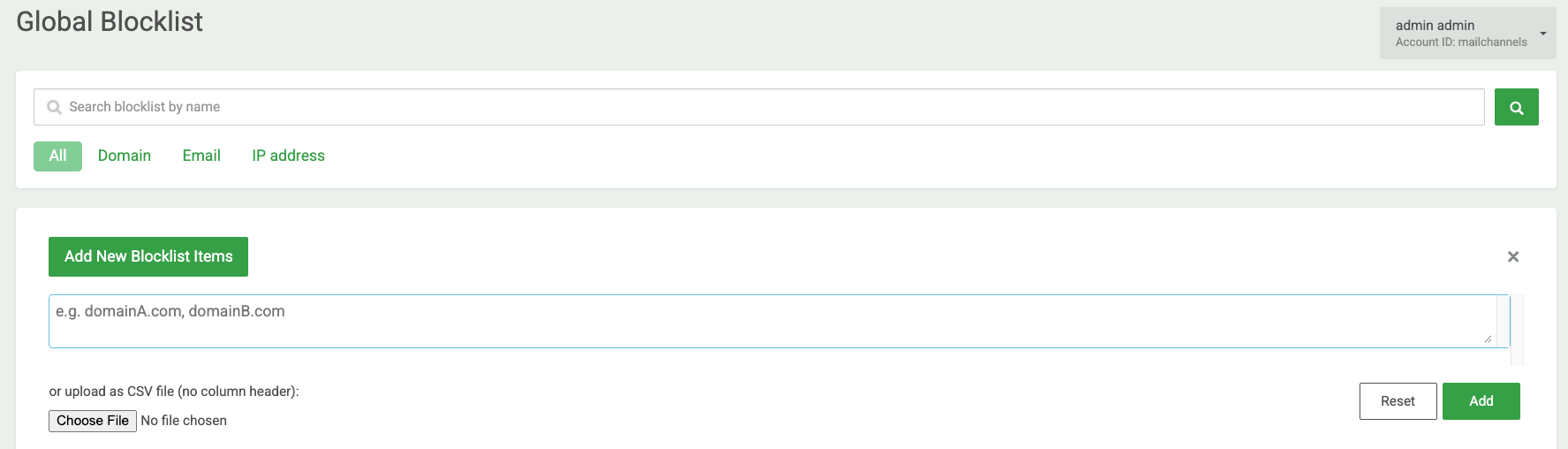 The Safelist page looks the same.
4. Enter one or more email addresses, domains, or IP addresses in the text field, separated by commas. To add many entries at once, upload a CSV file with no column header instead.
5. Click **Add**. Entries appear in the list immediately and apply to all domains in your account.
To remove an entry, click **Remove** next to it.
The Safelist page looks the same.
4. Enter one or more email addresses, domains, or IP addresses in the text field, separated by commas. To add many entries at once, upload a CSV file with no column header instead.
5. Click **Add**. Entries appear in the list immediately and apply to all domains in your account.
To remove an entry, click **Remove** next to it.
 ## Per-domain safelists and blocklists
Domain admins and mailbox users both sign in to the [Domain Console](https://app.mailchannels.com) to manage their safelists and blocklists. Domain admins see domain-level entries and configure domain-level settings. Mailbox users see and manage only their own personal entries. The UI is the same for both ? user-level settings take precedence over domain and global settings.
You can add any of the following entry types:
* **Email address** ? for example, `newsletter@example.com`
* **Domain** ? for example, `example.com`
* **IP address** ? for example, `192.0.2.1`
### Add a per-domain safelist or blocklist entry
1. Sign in to the [Domain Console](https://app.mailchannels.com).
2. Click **Safelist** or **Blocklist** in the left navigation.
## Per-domain safelists and blocklists
Domain admins and mailbox users both sign in to the [Domain Console](https://app.mailchannels.com) to manage their safelists and blocklists. Domain admins see domain-level entries and configure domain-level settings. Mailbox users see and manage only their own personal entries. The UI is the same for both ? user-level settings take precedence over domain and global settings.
You can add any of the following entry types:
* **Email address** ? for example, `newsletter@example.com`
* **Domain** ? for example, `example.com`
* **IP address** ? for example, `192.0.2.1`
### Add a per-domain safelist or blocklist entry
1. Sign in to the [Domain Console](https://app.mailchannels.com).
2. Click **Safelist** or **Blocklist** in the left navigation.
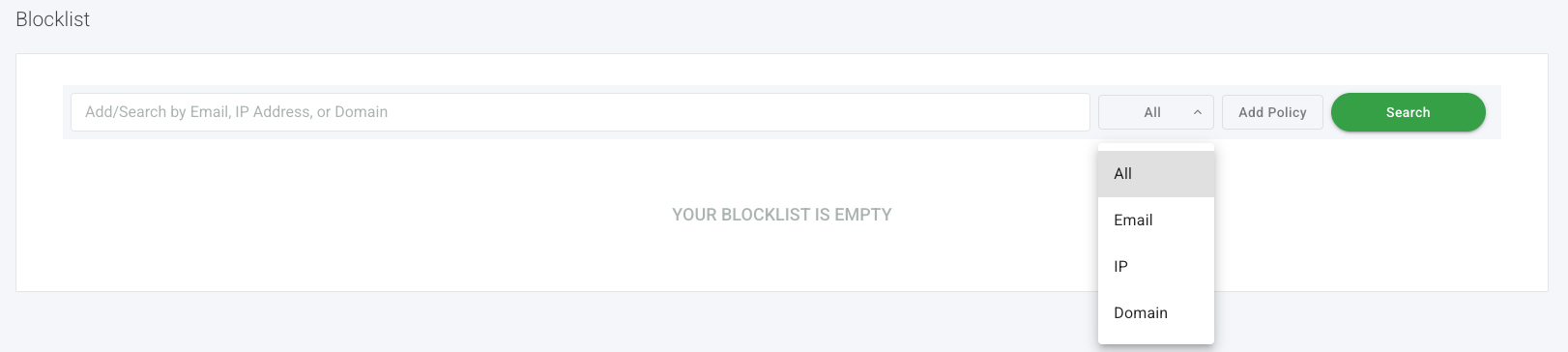 The Safelist page looks the same.
3. Type an email address, IP address, or domain in the **Add/Search** field.
4. Click **Add Policy**. The entry appears in the list immediately.
To search existing entries, type in the **Add/Search** field and click **Search**. Use the **All** dropdown to filter by type.
To remove an entry, click the **?** menu next to it and select **Delete**.
The Safelist page looks the same.
3. Type an email address, IP address, or domain in the **Add/Search** field.
4. Click **Add Policy**. The entry appears in the list immediately.
To search existing entries, type in the **Add/Search** field and click **Search**. Use the **All** dropdown to filter by type.
To remove an entry, click the **?** menu next to it and select **Delete**.
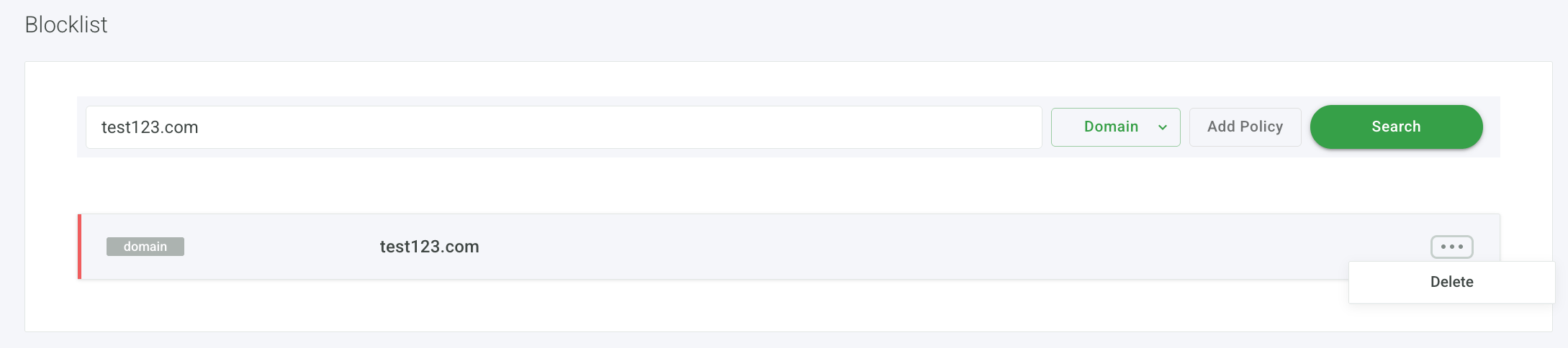 The Safelist removal works the same way.
## User-level safelists and blocklists
Mailbox users manage their own personal safelists and blocklists from the [Domain Console](https://app.mailchannels.com). Entries apply only to your own mailbox and take precedence over domain and global settings.
The steps to add and remove entries are the same as the [per-domain steps above](#add-a-per-domain-safelist-or-blocklist-entry) ? sign in to the Domain Console, click **Safelist** or **Blocklist** in the left navigation, and use **Add Policy** to add entries and the **?** menu to delete them.
The Safelist removal works the same way.
## User-level safelists and blocklists
Mailbox users manage their own personal safelists and blocklists from the [Domain Console](https://app.mailchannels.com). Entries apply only to your own mailbox and take precedence over domain and global settings.
The steps to add and remove entries are the same as the [per-domain steps above](#add-a-per-domain-safelist-or-blocklist-entry) ? sign in to the Domain Console, click **Safelist** or **Blocklist** in the left navigation, and use **Add Policy** to add entries and the **?** menu to delete them.