> ## Documentation Index
> Fetch the complete documentation index at: https://docs.mailchannels.com/llms.txt
> Use this file to discover all available pages before exploring further.
# Review and manage the MailChannels inbound quarantine
> Learn how to review, release, and report quarantined messages in MailChannels Inbound, and how the quarantine fits into your spam handling policy.
When spam handling is set to **Quarantine Spam**, MailChannels holds suspected spam in a secure holding area instead of delivering it to your inbox or rejecting it outright. You can review held messages, release any that were incorrectly flagged, and block or safelist senders directly from the quarantine.
## How the quarantine works
Every message that arrives at your domain is scanned by MailChannels. When a message is identified as spam and your domain's spam handling policy is set to quarantine, the message is stored by MailChannels rather than forwarded to your mail server. The message does not touch your inbox unless you explicitly release it.
Quarantined messages are stored for up to **7 days**, after which they are automatically deleted.
The quarantine is only active when your domain admin has selected **Quarantine Spam** in Domain Settings. If your domain is set to block or flag spam instead, messages will not appear in the quarantine. See [Configure spam handling](/inbound/domain-admins#configure-spam-handling) for instructions.
## Access your quarantine
1. Sign in to the [Domain Console](https://app.mailchannels.com).
2. Click **Logs** in the left navigation.
3. Select the **Quarantined** filter in the search bar and click **Search**.
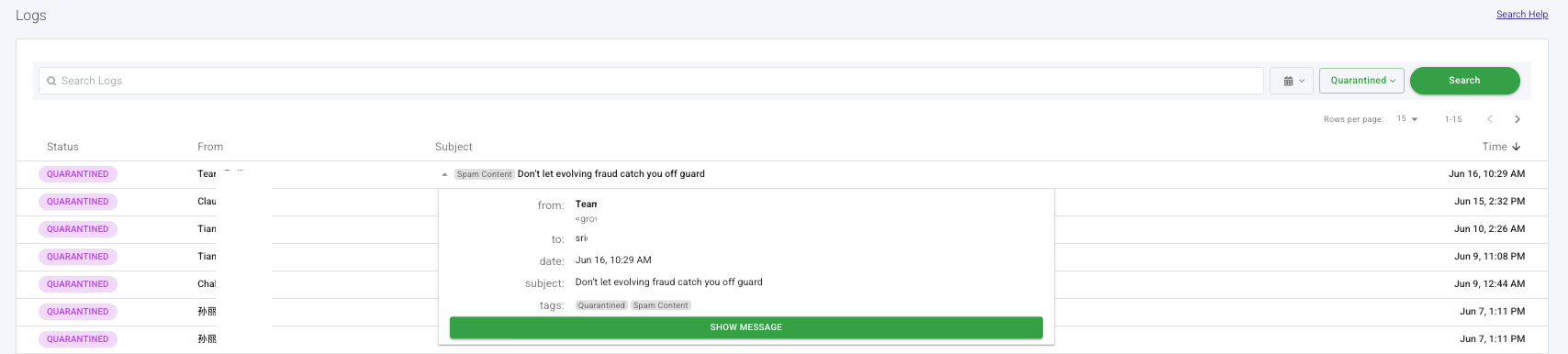 Each row shows the message status, sender, subject, and time. Quarantined messages are tagged **QUARANTINED** with the reason ? for example, **Spam Content**.
4. Click the **?** arrow to the left of the subject line to expand the message details. The panel shows the sender, recipient, date, subject, and tags.
5. Click **Show Message** to render the full message content and verify whether it is legitimate or spam.
Domain admins see logs for all users in the domain. Mailbox users see only their own logs. The interface is the same for both.
## Take action on a message
Hover over any message row to reveal three action icons. Click the action you want to take:
Each row shows the message status, sender, subject, and time. Quarantined messages are tagged **QUARANTINED** with the reason ? for example, **Spam Content**.
4. Click the **?** arrow to the left of the subject line to expand the message details. The panel shows the sender, recipient, date, subject, and tags.
5. Click **Show Message** to render the full message content and verify whether it is legitimate or spam.
Domain admins see logs for all users in the domain. Mailbox users see only their own logs. The interface is the same for both.
## Take action on a message
Hover over any message row to reveal three action icons. Click the action you want to take:
 ### Release a message
Click the **Release** (?) icon to deliver a message to your inbox immediately. Use this when a legitimate message has been incorrectly quarantined.
### Safelist a sender
Click the **Safelist** (?) icon to add the sender to your safelist. Future messages from them will be delivered without being quarantined.
If you are signed in as a domain admin, the entry is added to the domain-level safelist. If you are signed in as a mailbox user, it is added to your personal safelist.
### Block a sender
Click the **Block** (?) icon to add the sender to your blocklist. Future messages from them will be automatically rejected.
If you are signed in as a domain admin, the entry is added to the domain-level blocklist. If you are signed in as a mailbox user, it is added to your personal blocklist.
For instructions on managing your safelist and blocklist more broadly, see [Safelists and blocklists](/inbound/safelists-blocklists).
## Report a false positive
If a legitimate message was quarantined, release it first to deliver it to your inbox, then report it to help improve filter accuracy. See [Report false positives and false negatives](/outbound/report-false-positives) for instructions.
## Quarantine digest
When your domain's spam handling policy is set to **Quarantine Spam**, the quarantine digest is automatically active and cannot be turned off. Each mailbox user receives one digest email per day summarizing the messages currently held in their quarantine. The time the digest is sent is determined by the system.
The digest includes messages addressed to the mailbox user as well as any alias recipients associated with their address. Messages can be reviewed and released directly from the digest without signing in to the Domain Console.
To stop receiving digest emails, switch your spam handling policy to **Block Spam** or **Flag Spam** in [Domain Settings](/inbound/domain-admins#configure-spam-handling).
### Release a message
Click the **Release** (?) icon to deliver a message to your inbox immediately. Use this when a legitimate message has been incorrectly quarantined.
### Safelist a sender
Click the **Safelist** (?) icon to add the sender to your safelist. Future messages from them will be delivered without being quarantined.
If you are signed in as a domain admin, the entry is added to the domain-level safelist. If you are signed in as a mailbox user, it is added to your personal safelist.
### Block a sender
Click the **Block** (?) icon to add the sender to your blocklist. Future messages from them will be automatically rejected.
If you are signed in as a domain admin, the entry is added to the domain-level blocklist. If you are signed in as a mailbox user, it is added to your personal blocklist.
For instructions on managing your safelist and blocklist more broadly, see [Safelists and blocklists](/inbound/safelists-blocklists).
## Report a false positive
If a legitimate message was quarantined, release it first to deliver it to your inbox, then report it to help improve filter accuracy. See [Report false positives and false negatives](/outbound/report-false-positives) for instructions.
## Quarantine digest
When your domain's spam handling policy is set to **Quarantine Spam**, the quarantine digest is automatically active and cannot be turned off. Each mailbox user receives one digest email per day summarizing the messages currently held in their quarantine. The time the digest is sent is determined by the system.
The digest includes messages addressed to the mailbox user as well as any alias recipients associated with their address. Messages can be reviewed and released directly from the digest without signing in to the Domain Console.
To stop receiving digest emails, switch your spam handling policy to **Block Spam** or **Flag Spam** in [Domain Settings](/inbound/domain-admins#configure-spam-handling).