> ## Documentation Index
> Fetch the complete documentation index at: https://docs.mailchannels.com/llms.txt
> Use this file to discover all available pages before exploring further.
# Set up MailChannels Inbound Filtering as a domain admin
> Create a MailChannels account, verify domain ownership, and configure MX records and downstream delivery to activate inbound filtering for your domain.
Domain admins are the people responsible for managing a domain's email settings ? typically the person who controls the domain's DNS records. If your hosting provider has provisioned your domain for inbound filtering, you complete the setup by creating a MailChannels account, verifying your domain ownership, and configuring DNS and delivery records.
MailChannels Inbound Filtering is currently available through hosting provider partners. Before starting, confirm with your hosting provider that they support MailChannels and that it has been enabled for your domain.
## Set up inbound filtering
Visit [app.mailchannels.com/signup](https://app.mailchannels.com/signup) and create an account using an email address at your private domain. Public webmail addresses such as `@gmail.com` or `@yahoo.com` are not accepted.
After signing up, open the confirmation email from MailChannels and click **Confirm Email Address** to activate your account.
Creating an account does not automatically make you a domain administrator. Verify DNS ownership of your domain to gain full administrative privileges. See [Domain admin promotion](/inbound/domain-admin-promotion) for instructions.
Configure a downstream record so MailChannels knows where to deliver filtered mail, then update your MX records to route inbound traffic through MailChannels. See [MX & downstream records](/inbound/downstream-records) for full instructions.
## Configure spam handling
Once filtering is active, configure how MailChannels handles messages identified as spam:
1. Sign in to the [Domain Console](https://app.mailchannels.com).
2. Click **Domain Settings** in the left navigation.
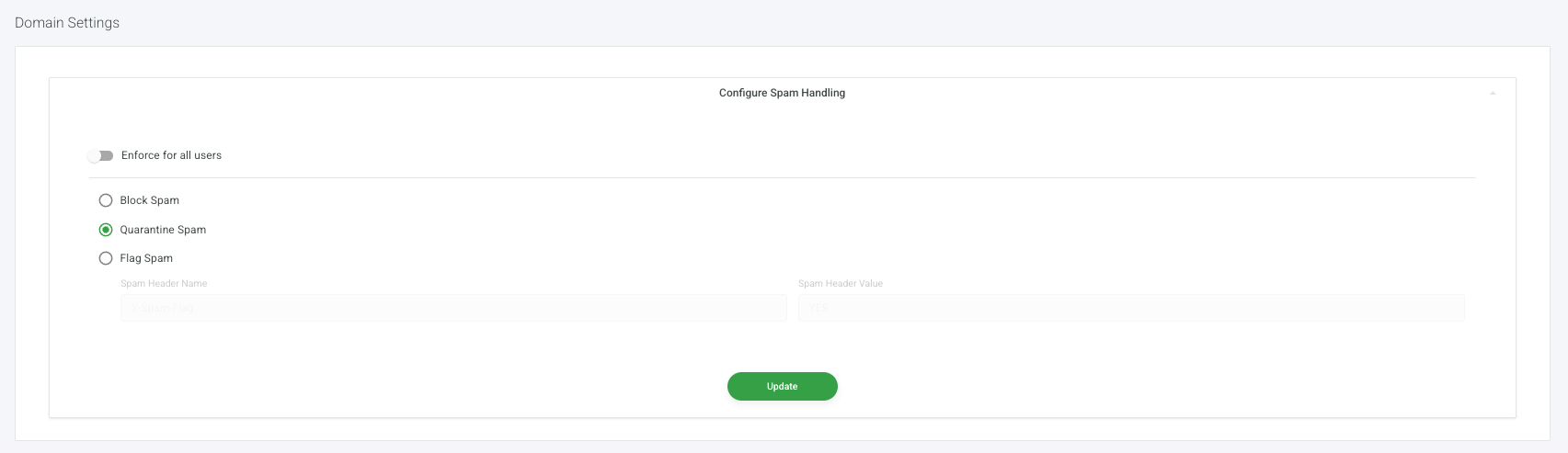
3. In the **Configure Spam Handling** panel, select one of the following options:
* **Block Spam** ? spam is rejected at the connection level and not delivered.
* **Quarantine Spam** ? spam is held in quarantine for you to review. See [Quarantine](/inbound/quarantine) for how to manage quarantined messages.
* **Flag Spam** ? spam is delivered with a custom header. Enter the header name and value in the fields provided.
4. To prevent users from overriding this setting for their own account, enable the **Enforce for all users** toggle.
5. Click **Update** to save.
 ## What happens next
With your MX records pointing to MailChannels and a downstream record configured, inbound filtering is fully active. All email sent to your domain passes through MailChannels before reaching your mail server. Use your [Domain Console](https://app.mailchannels.com) to manage your filtering settings.
Review, release, and manage messages held in quarantine for your domain.
Allow or block specific senders, domains, and IP addresses for your domain.
Configure how MailChannels handles messages that fail DMARC authentication.
View all mailbox users in your domain and see which users have email filtering active.
## What happens next
With your MX records pointing to MailChannels and a downstream record configured, inbound filtering is fully active. All email sent to your domain passes through MailChannels before reaching your mail server. Use your [Domain Console](https://app.mailchannels.com) to manage your filtering settings.
Review, release, and manage messages held in quarantine for your domain.
Allow or block specific senders, domains, and IP addresses for your domain.
Configure how MailChannels handles messages that fail DMARC authentication.
View all mailbox users in your domain and see which users have email filtering active.